Federation
Identity federation is an enterprise security capability that allows administrators to maintain employee credentials in a single authoritative enterprise identity repository and enables the single sign-on experience for their employees across multiple systems.
Google makes many Oracle Database deployment and configuration operations available in the Google Cloud Console, CLI, API, and Terraform. Until all operations are available in Google Cloud, authorized users must use the OCI Console, CLI, API, or Terraform to perform those operations instead.
To enable authorized users to operate in OCI, Oracle AI Database@Google Cloud customers must enable identity federation between their Google and OCI environments. This requirement applies regardless of whether the identity provider is Google IAM or an alternative solution.
Oracle AI Database@Google Cloud defines a set of roles in Google Cloud IAM and only those users with the appropriate role assignments can perform operations on Oracle Database resources in Google Cloud. When users perform operations in OCI, OCI validates those same role assignments before authorizing the operation.
Setting up identity federation for Oracle AI Database@Google Cloud allows administrators to configure user sign-in to the associated OCI tenancy using their existing identity provider. OCI IAM supports SAML, OAuth 2.0, and OpenID Connect (OIDC), and can be federated with any IDP that supports these protocols.
To configure OCI IAM federation with your identity provider of choice, see the relevant OCI documentation:
- Microsoft Entra ID: Federation (Optional)
- Okta: OCI IAM with Okta Tutorials
- PingOne Identity: Set up Single Sign-On Between Oracle Cloud Infrastructure Identity and Access Management and PingOne
- Microsoft Active Directory Federation Services (ADFS): OCI IAM with ADFS Tutorials
Use the following instructions to make Google Cloud IAM & Admin the identity provider for the OCI tenancy.
In the Oracle Cloud Console, navigate to Identity & Security, then select Domains.

-
In the Domains list view, select the name of the "Default" domain to open the domain details page. Optionally, you can select another domain to configure single sign-on (SSO) for that domain.

-
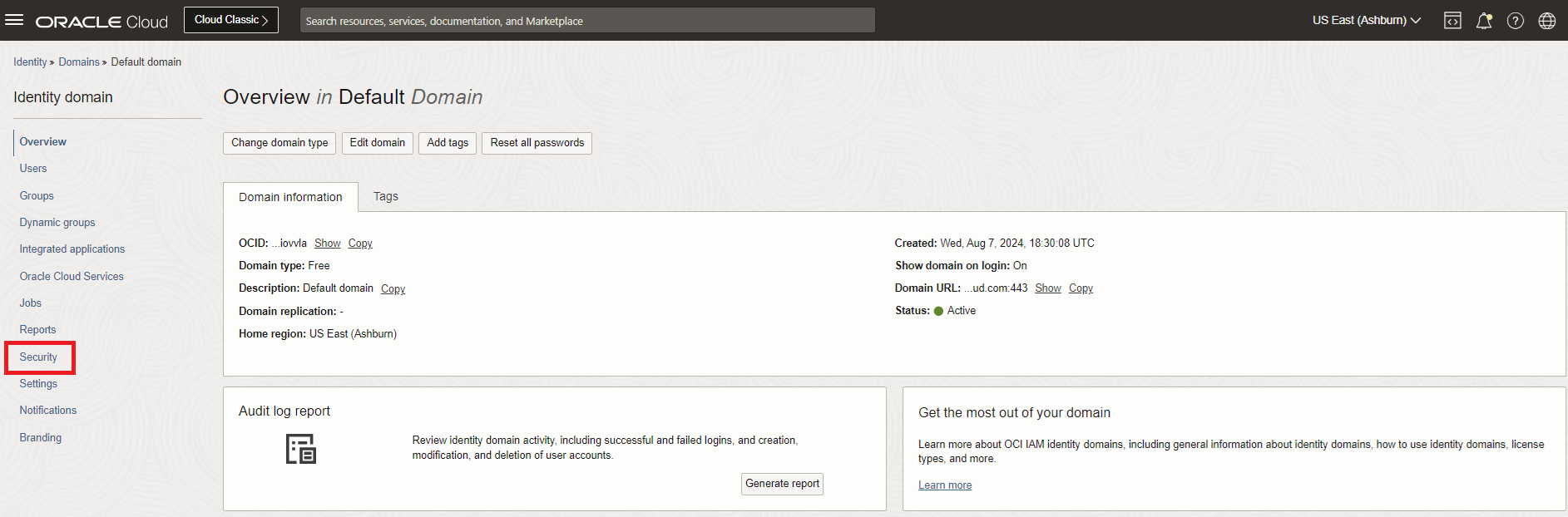
Select Security in the left navigation menu on the identity domain Overview page.
-
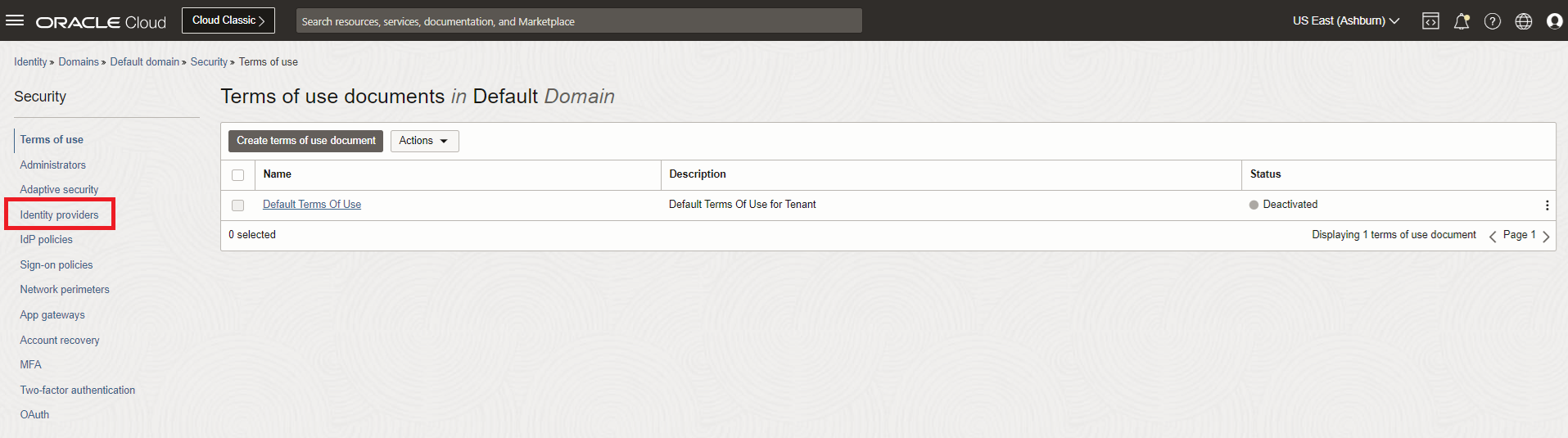
On the Security page for the domain, select Identity providers in the left navigation menu.
-
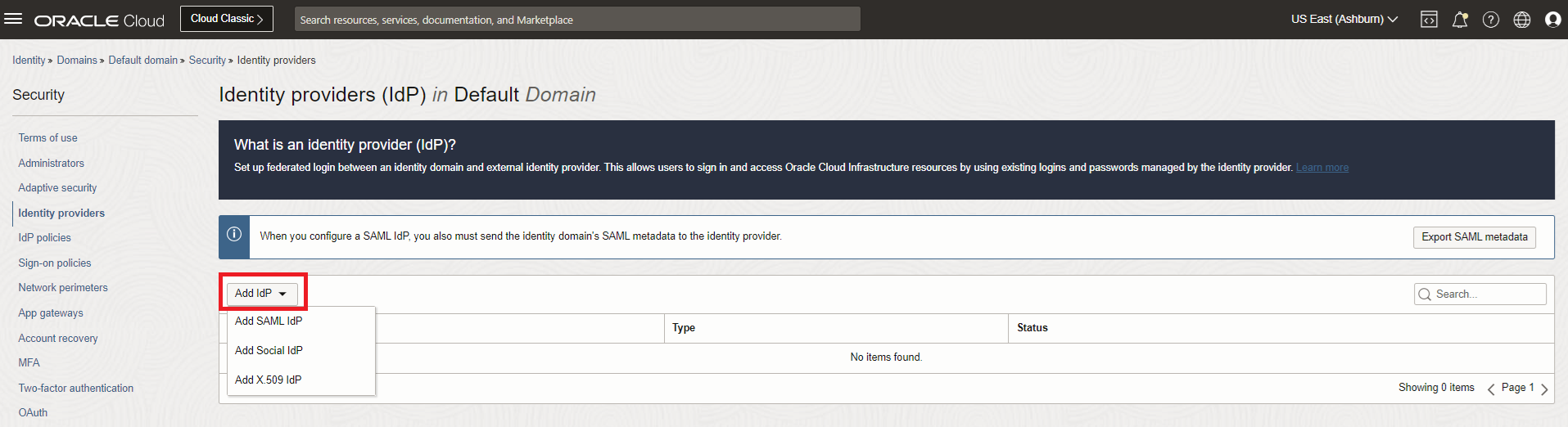
On the Identity providers page, select Add IdP, then select Add SAML IdP.
-
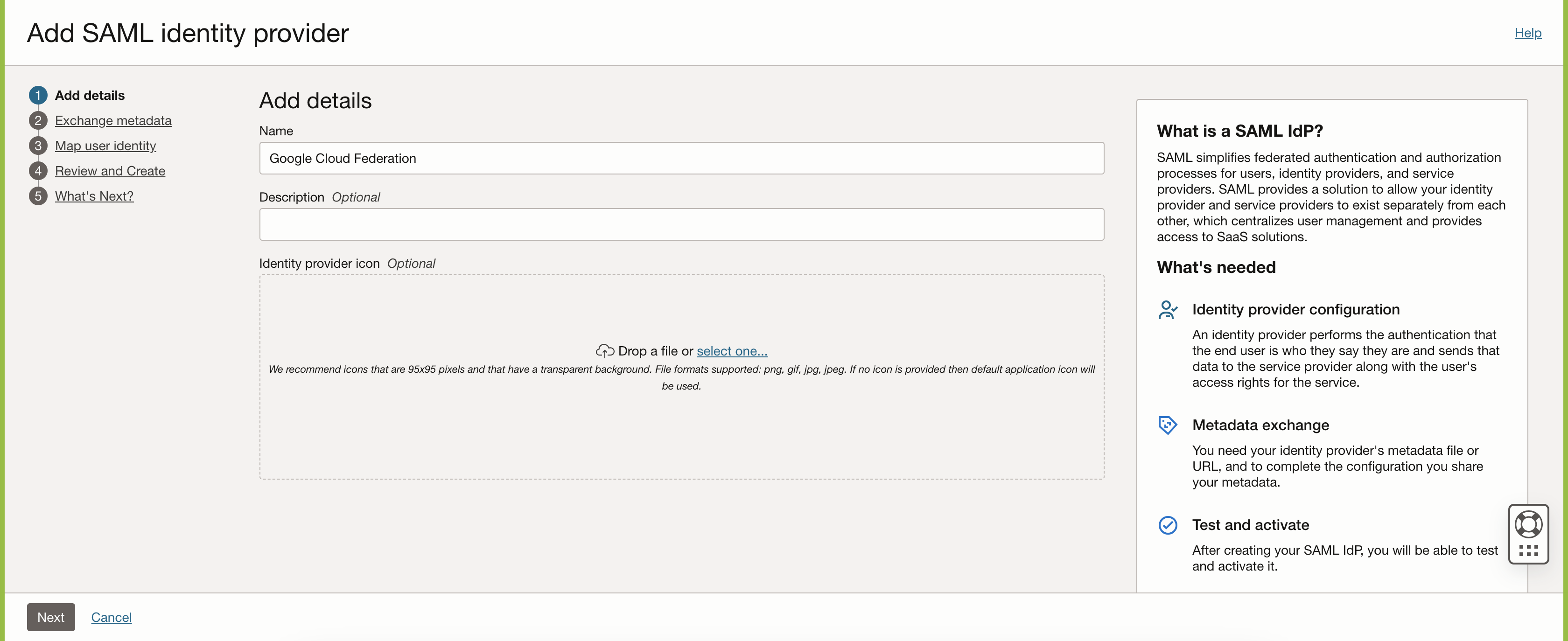
Enter the Name that you want to display on the OCI sign-in page when using single sign-on (SSO) to access the Oracle Cloud Console. Optionally, you can add a Description. Select Next to continue.
Leave this window or tab open while you perform the next steps that require the Google Cloud admin Console.
-
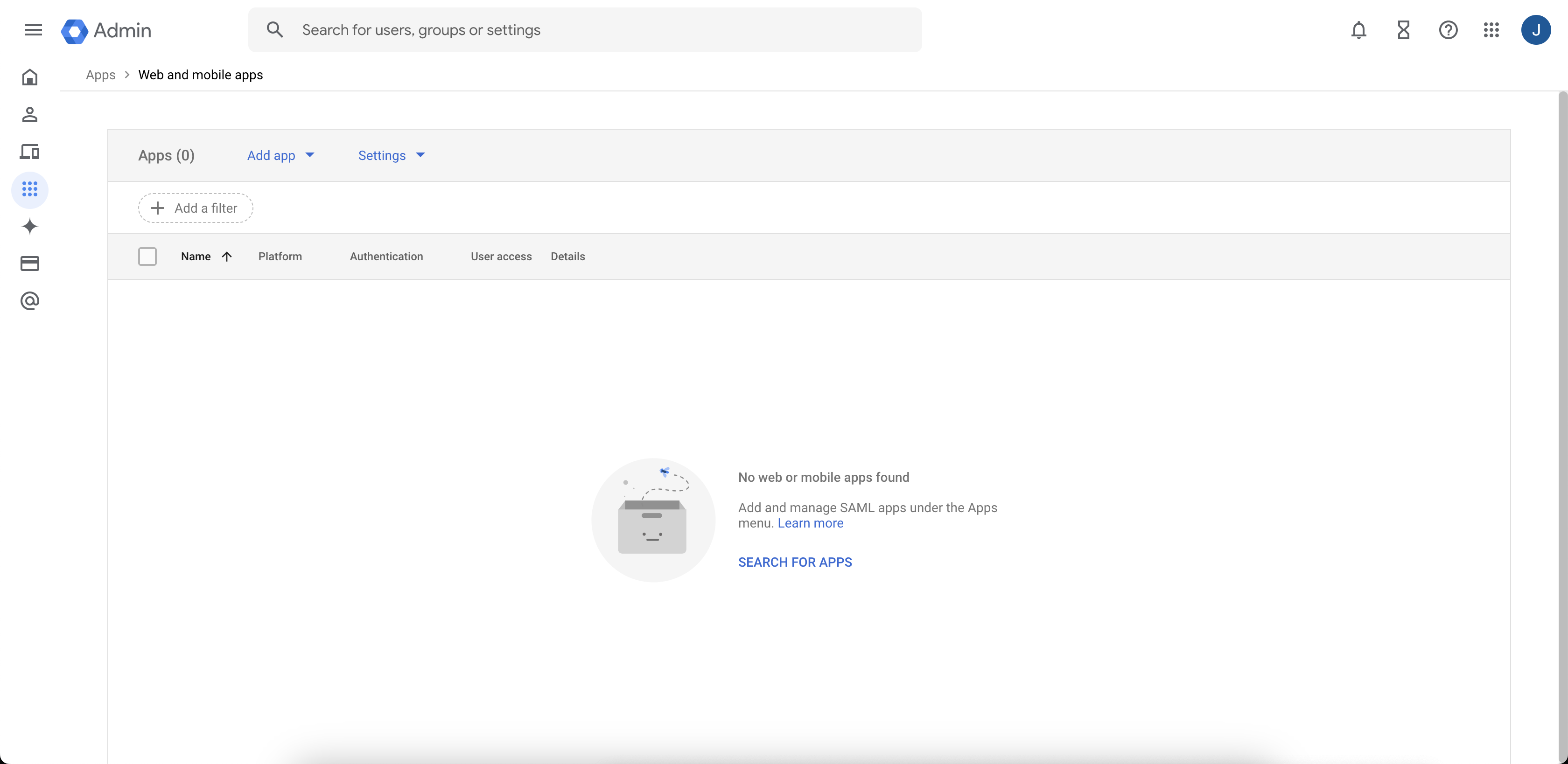
From the web browser, open another tab or window and navigate to the Google Cloud admin Console at https://admin.google.com/ac/apps/unified.
-
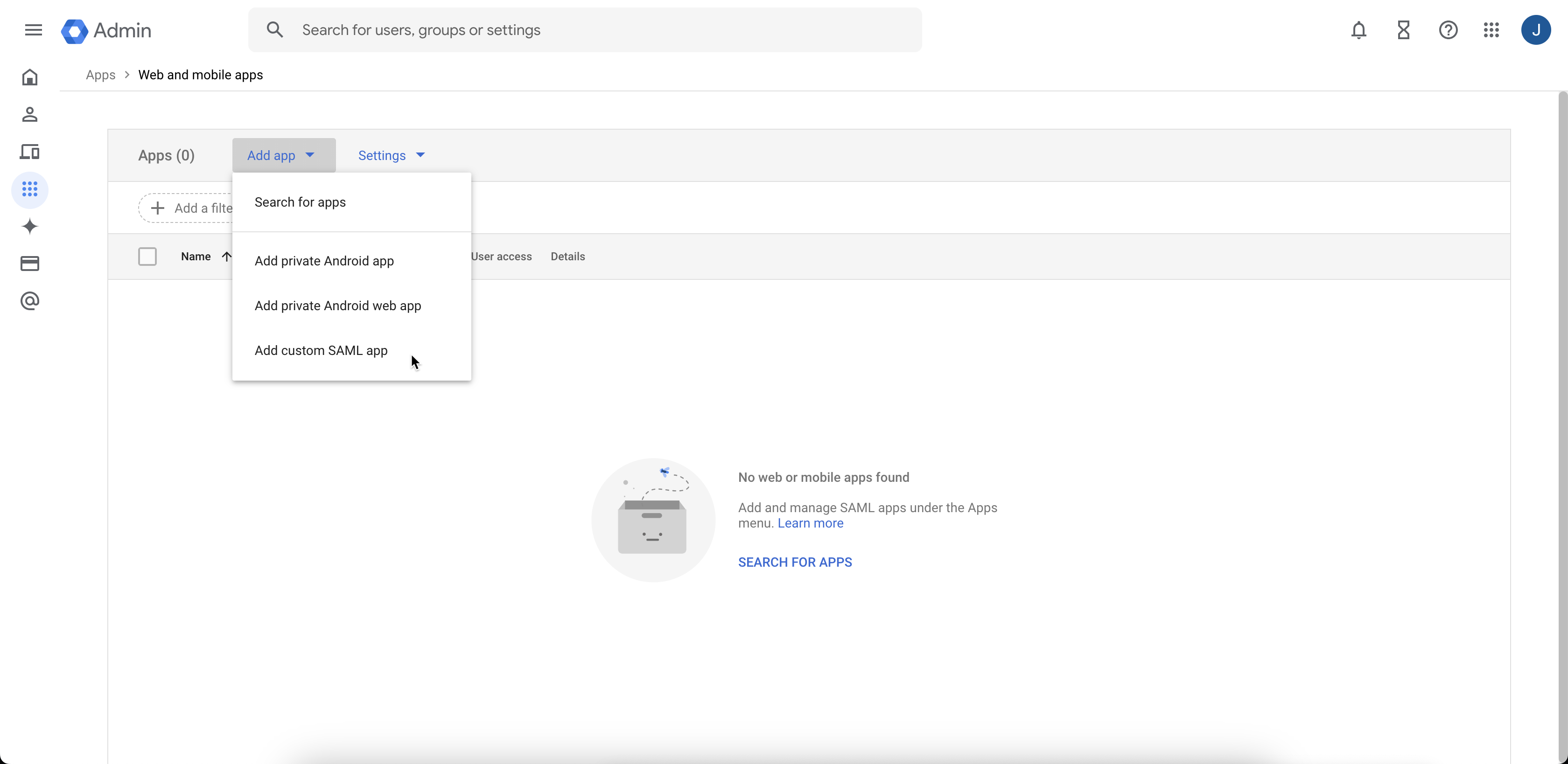
Select Add custom SAML app from the Add app menu.
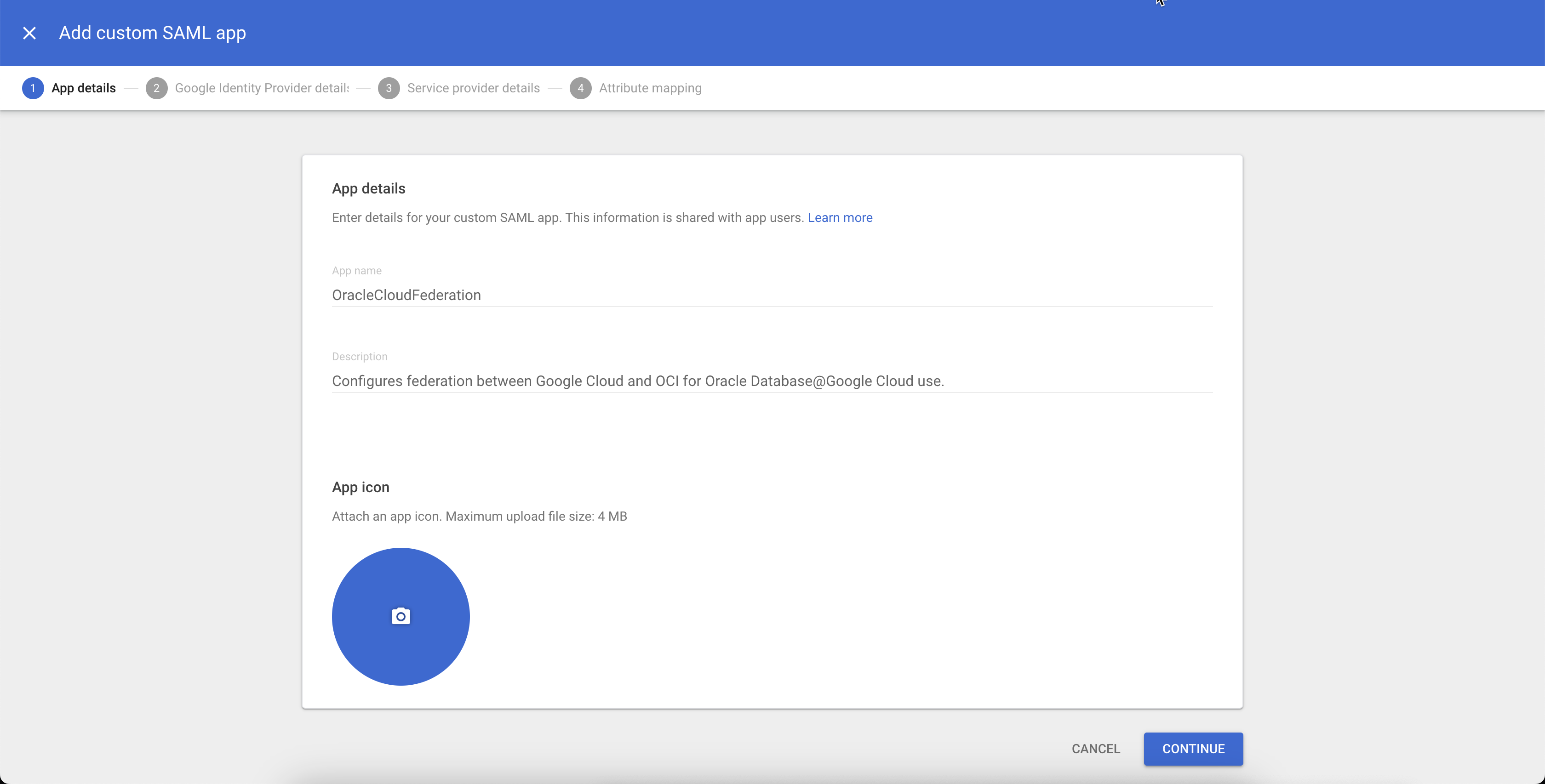
- Enter the following details and select Continue:
- App name: OracleCloudFederation
- Description: Configures identity federation between Google Cloud and Oracle Cloud for Oracle AI Database@Google Cloud use.
-
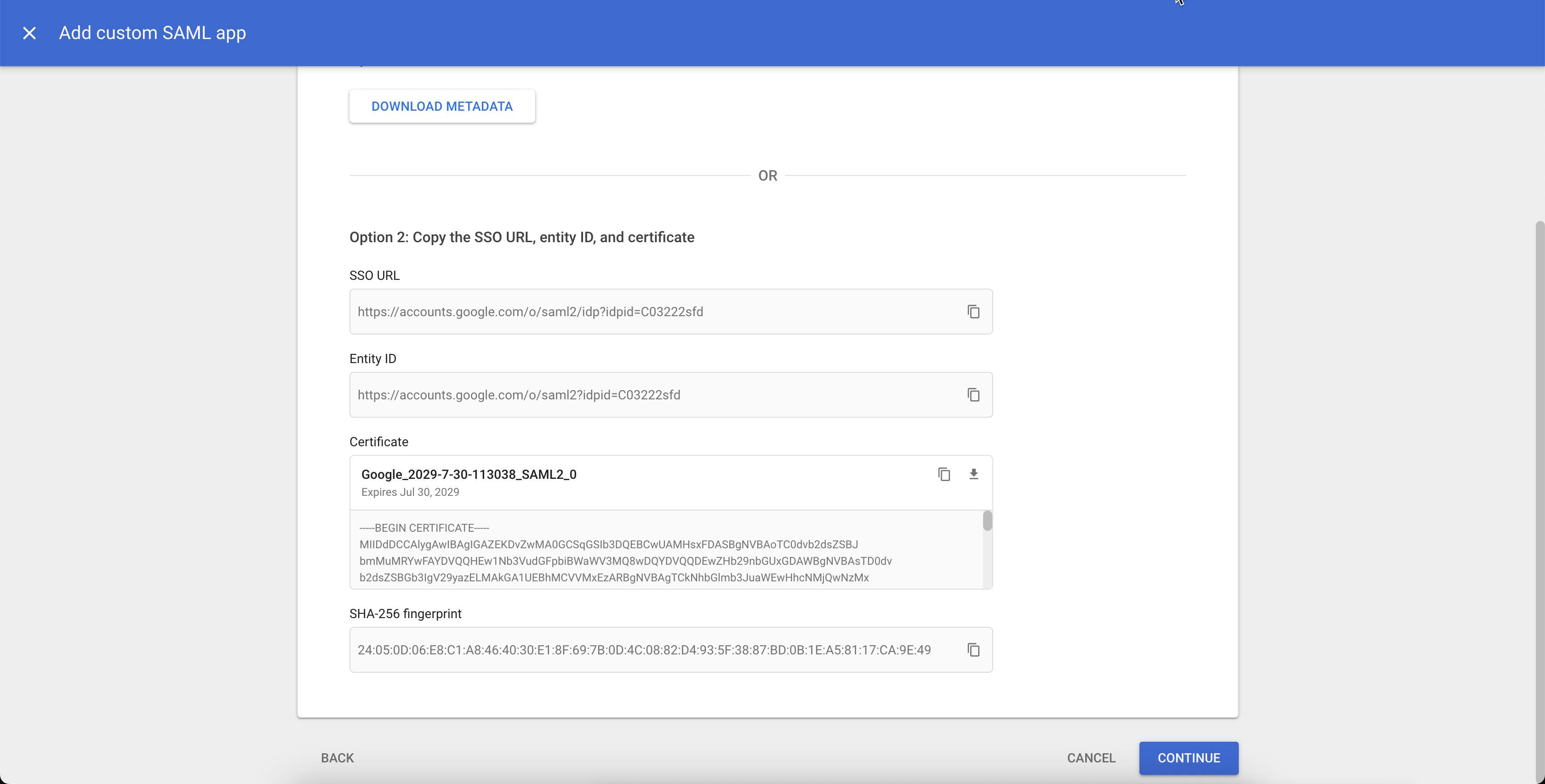
Under Option1: Download IdP metadata, select DOWNLOAD METADATA.
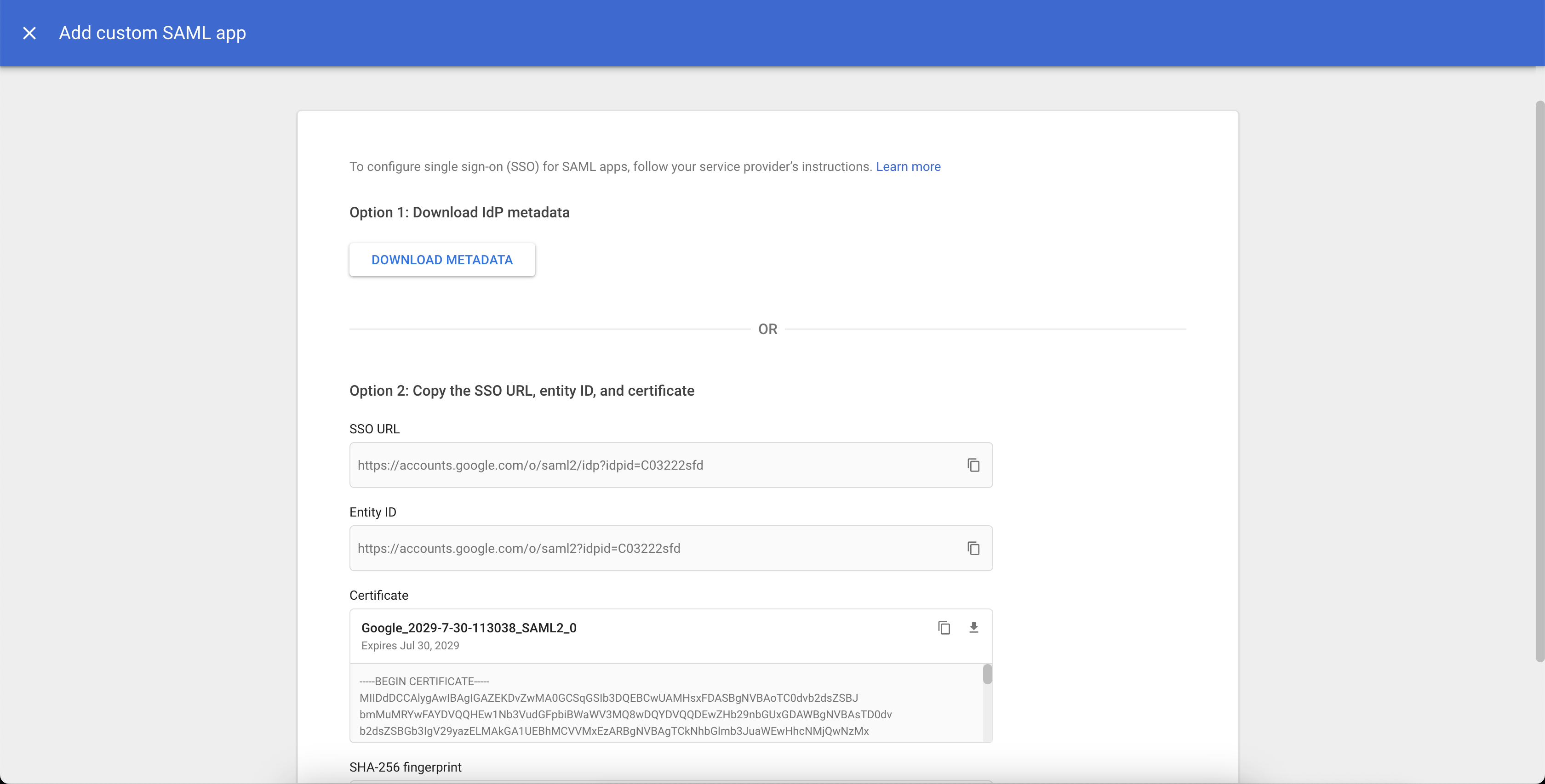
Select CONTINUE. Leave this window or tab open while you perform the next steps in the Oracle Cloud Console.
-
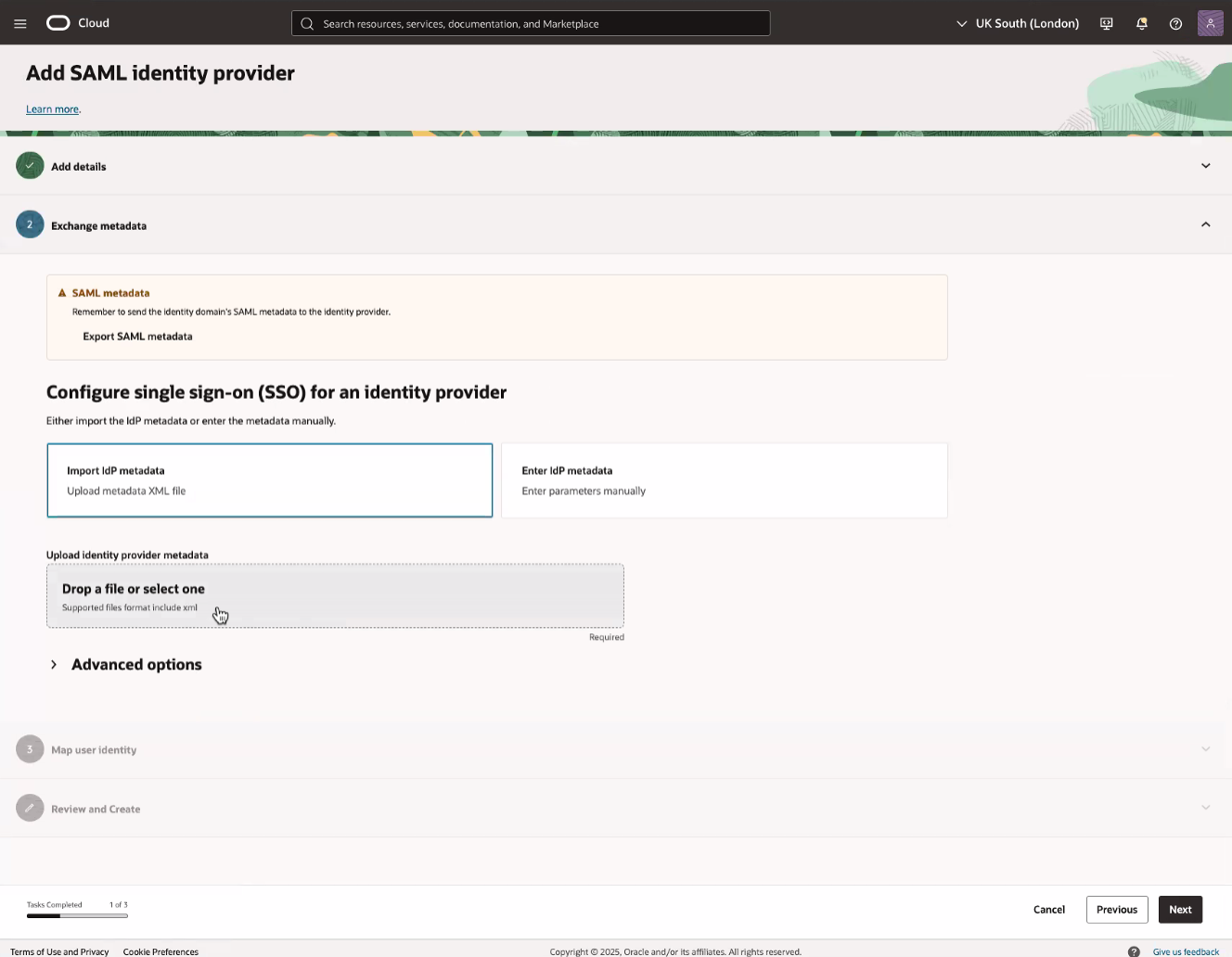
Return to the window or tab that displays the Oracle Cloud Console. Select Import IdP metadata Upload metadata XML file. In the Upload identity provider metadata section, select select one..., then navigate to the XML file downloaded in the previous step from the Google Cloud admin console and upload the file.
-
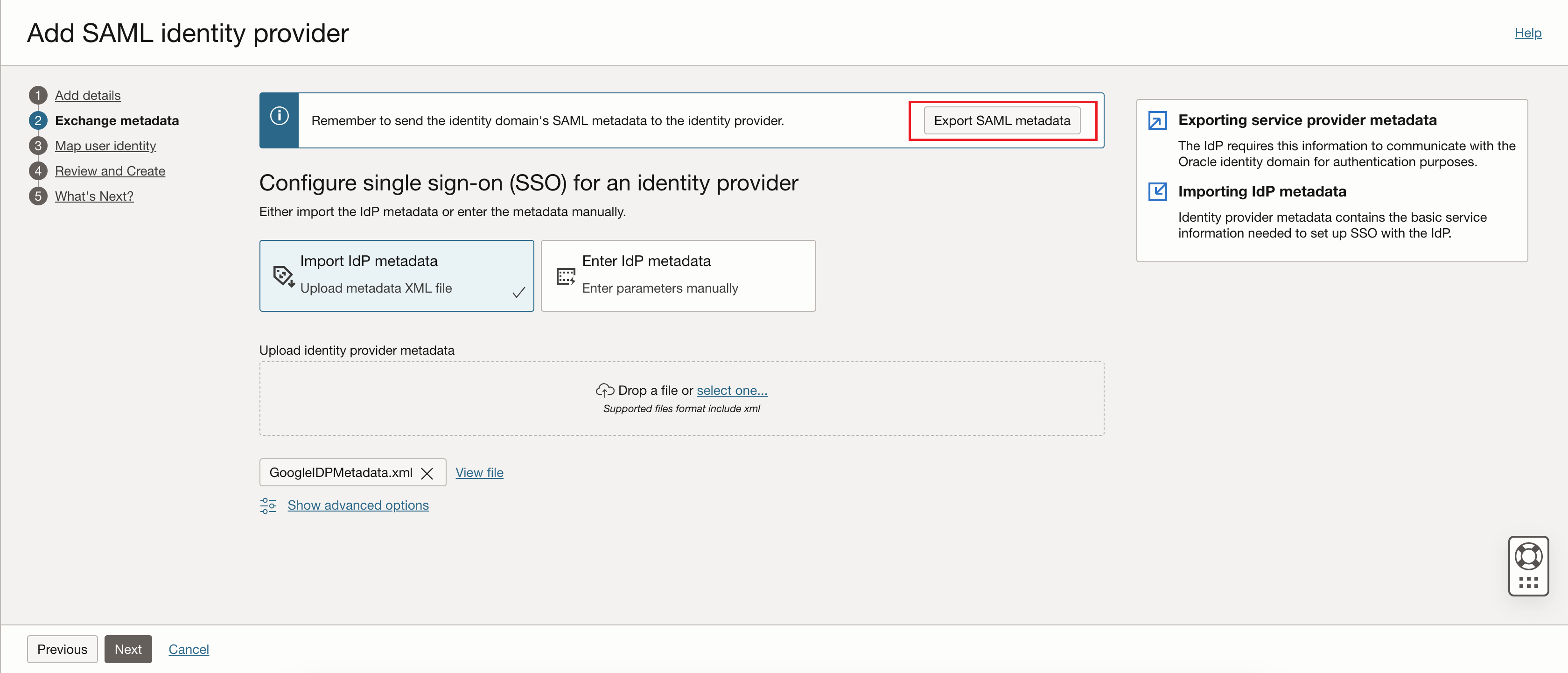
Select Export SAML metadata.
-
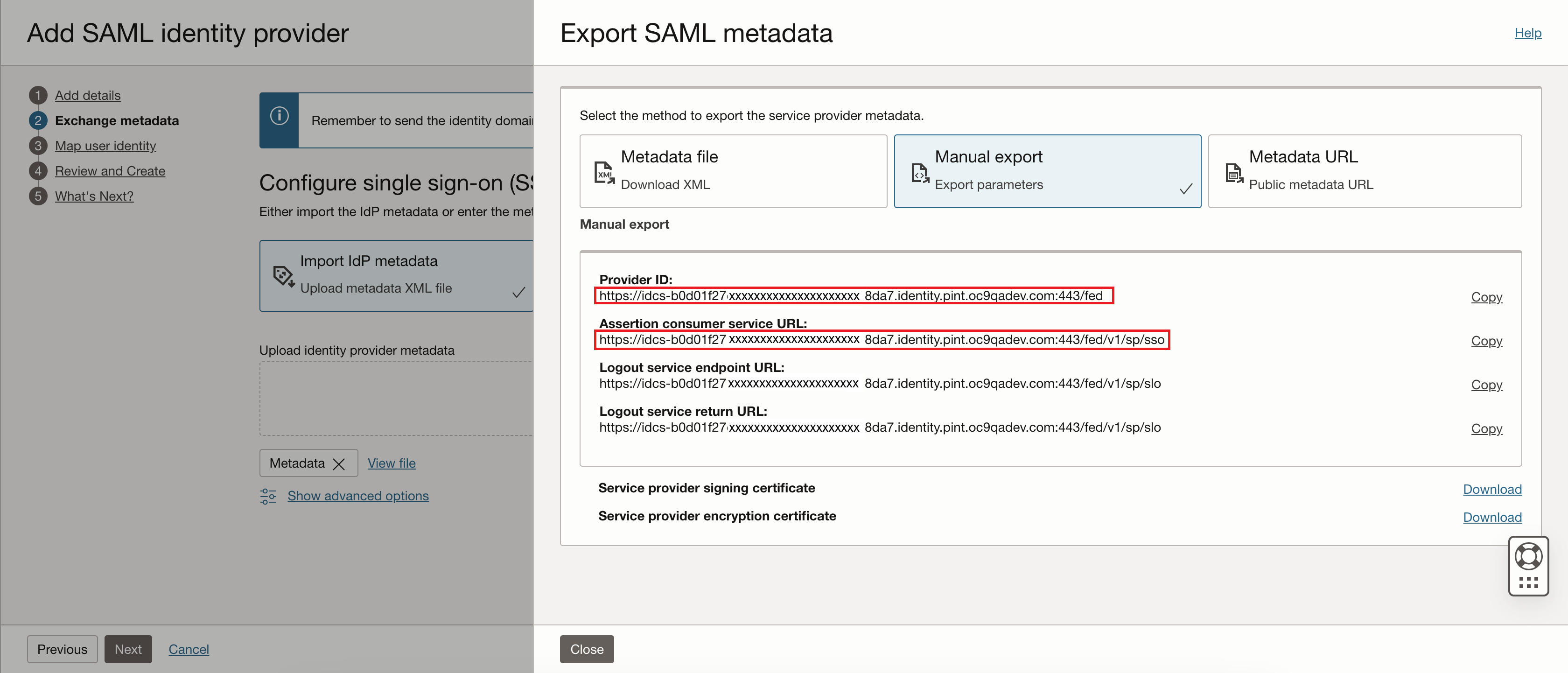
On the Export SAML metadata dialog, select Manual export. Copy the Provider ID and Assertion consumer service URL values into a text file on your local machine. Leave this window or tab open while you perform the next steps that require the Google Cloud admin console.
-
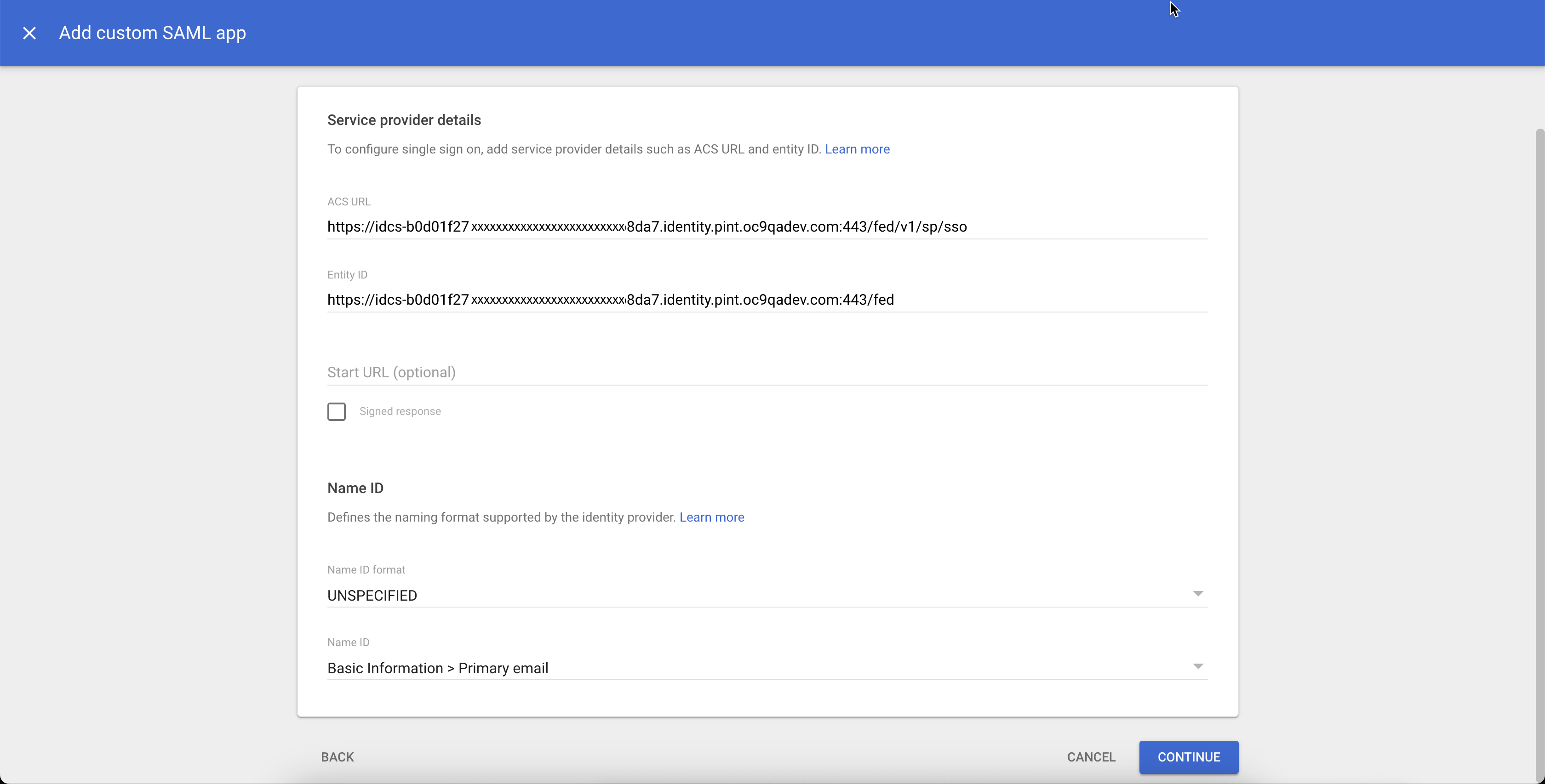
Return to the tab or window displaying the Google Cloud admin console. On the Service provider details page, enter the following:
- ACS URL: Enter the "Assertion consumer service URL" value copied from the Oracle Cloud Console in the previous step.
- Entity ID: Enter the "Provider ID" value copied from the Oracle Cloud Console in the previous step.
Select CONTINUE.
-
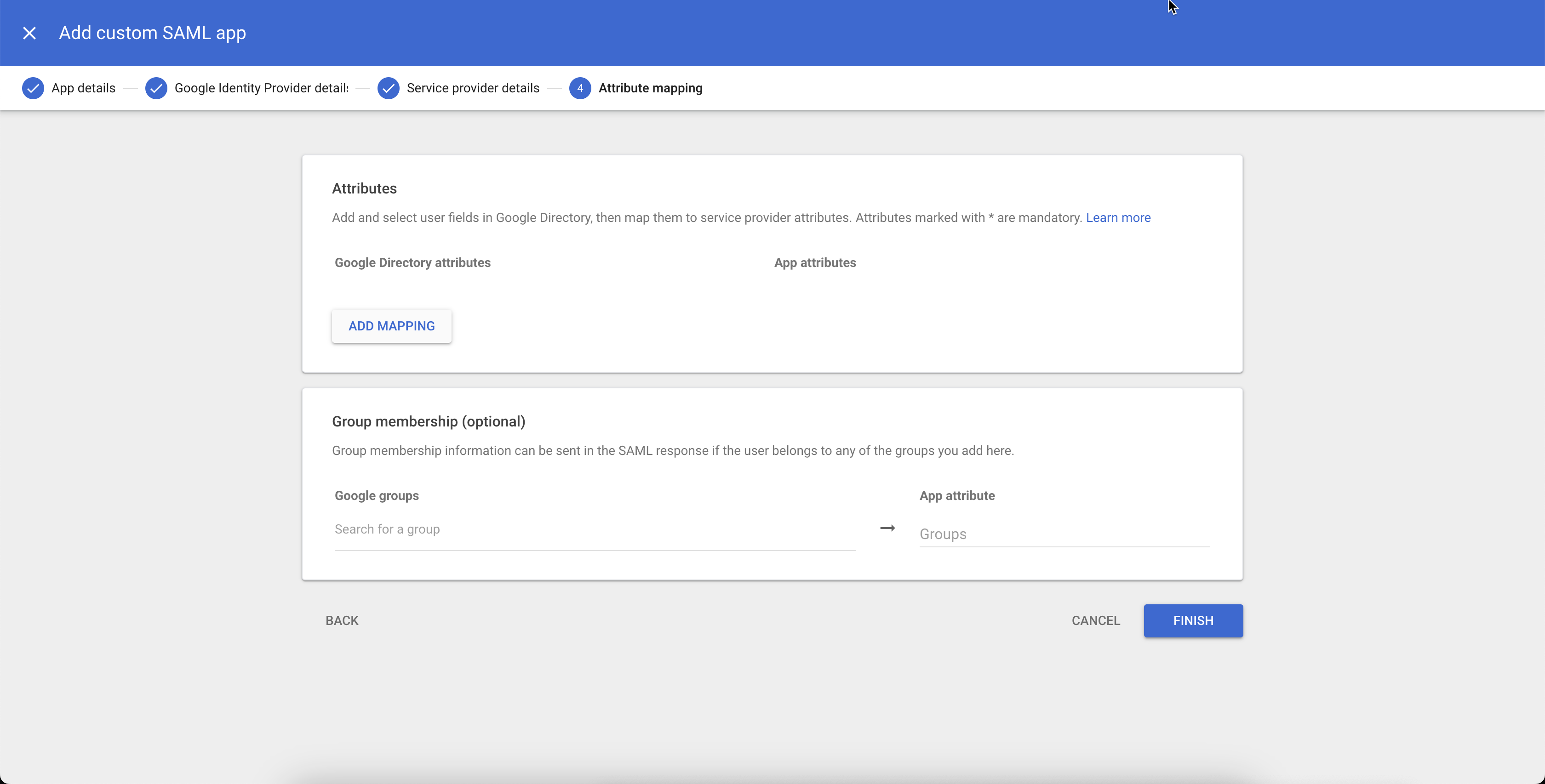
On the Attribute mapping page, select ADD MAPPING.
-
Add the following attribute mappings:
- First name → FirstName
- Last name → LastName
- Primary email → PrimaryEmail
For example, for the Basic Information attribute "First Name," enter the App attribute
FirstName.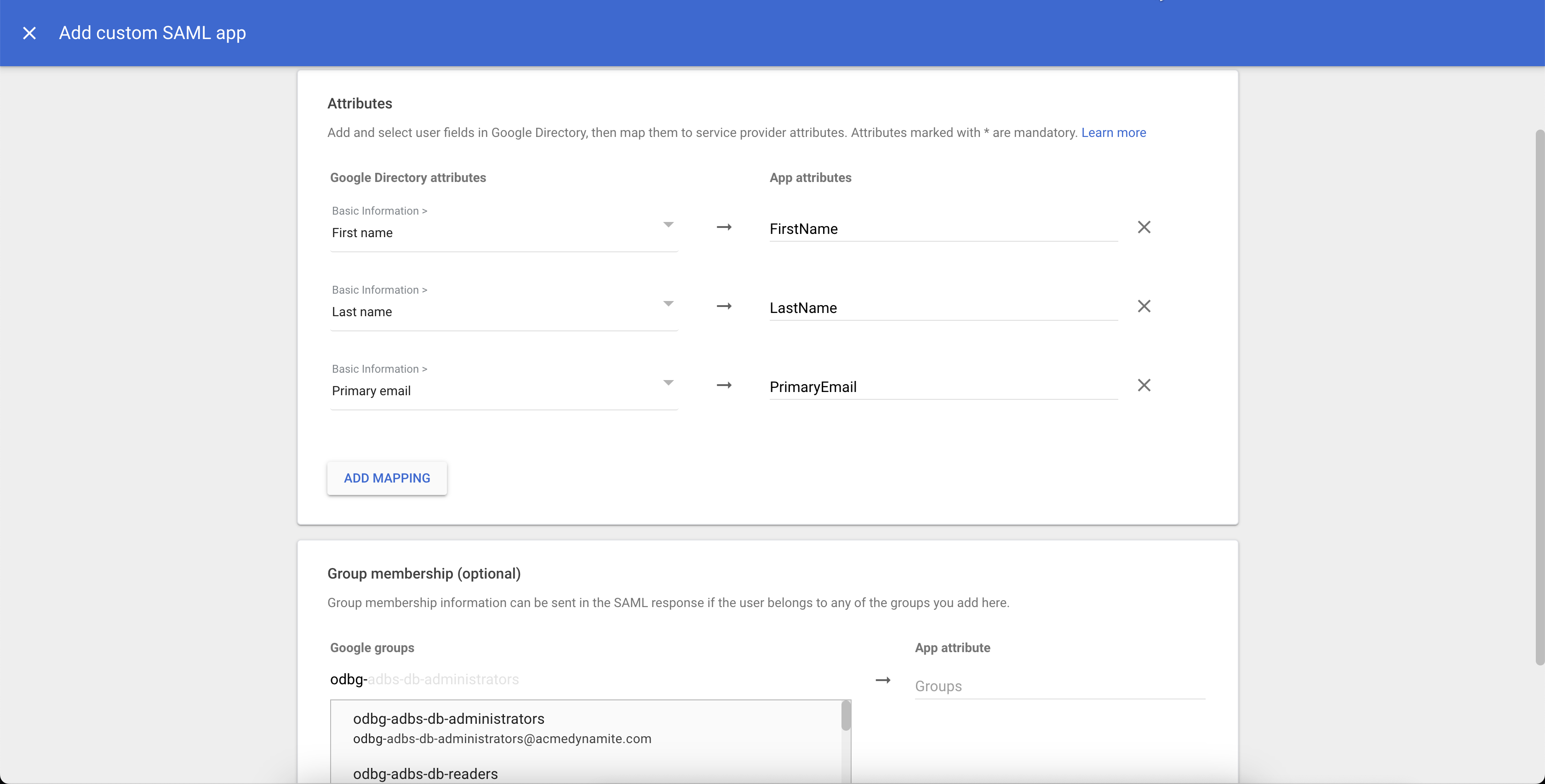
-
On the Attribute mapping page, in the Group membership section, add the following groups created for role-based access control (RBAC). The App attribute for the groups is
MemberOf. Select FINISH to continue.odbg-adbs-db-administratorsodbg-costmgmt-administratorsodbg-db-family-administratorsodbg-db-family-readersodbg-dbmgmt-administratorsodbg-exa-cdb-administratorsodbg-exa-infra-administratorsodbg-exa-pdb-administratorsodbg-exadb-vm-cluster-administratorsodbg-exascale-db-storage-vault-administratorsodbg-metrics-readersodbg-network-administratorsodbg-network-readersodbg-vm-cluster-administrator
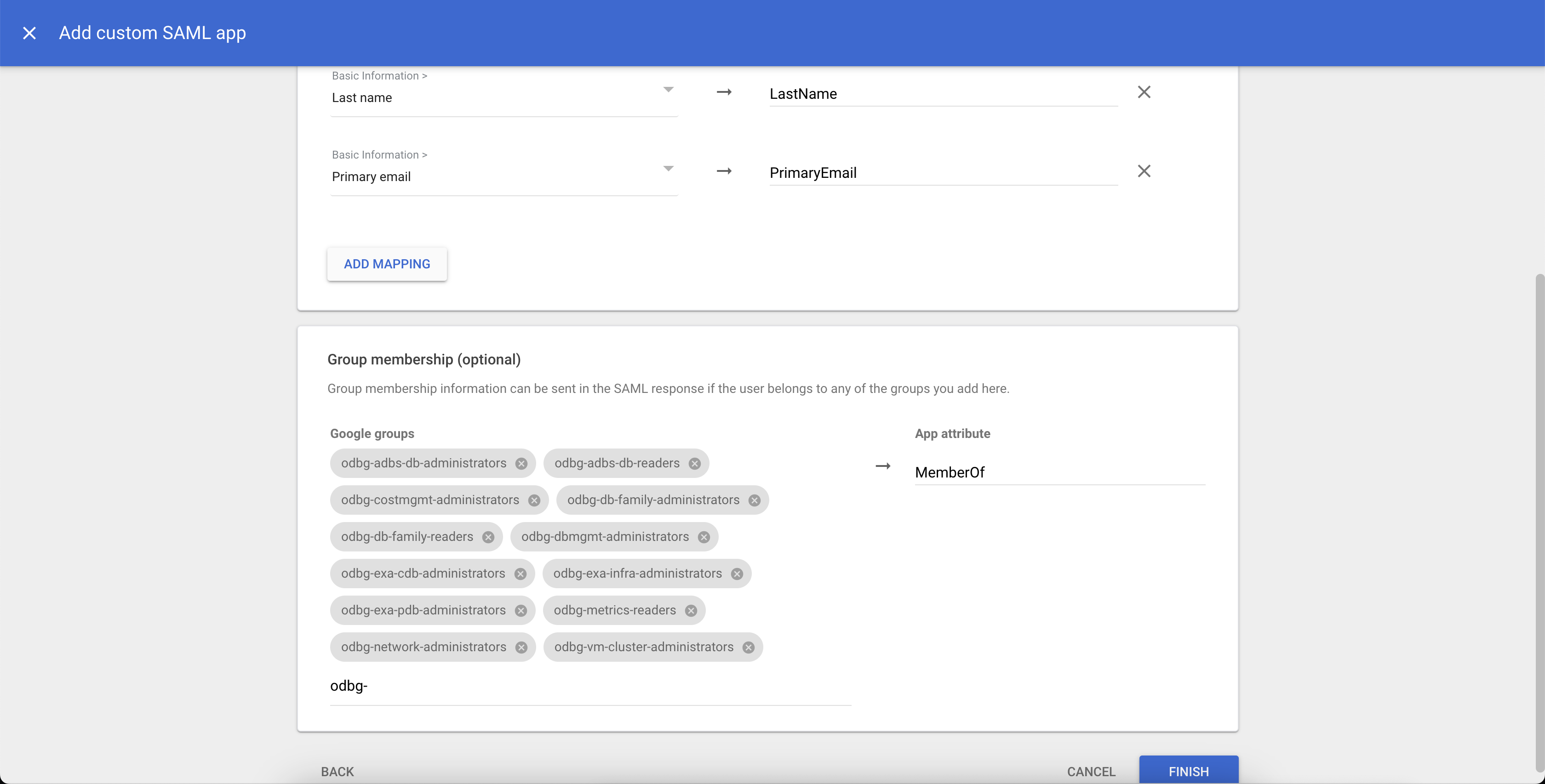
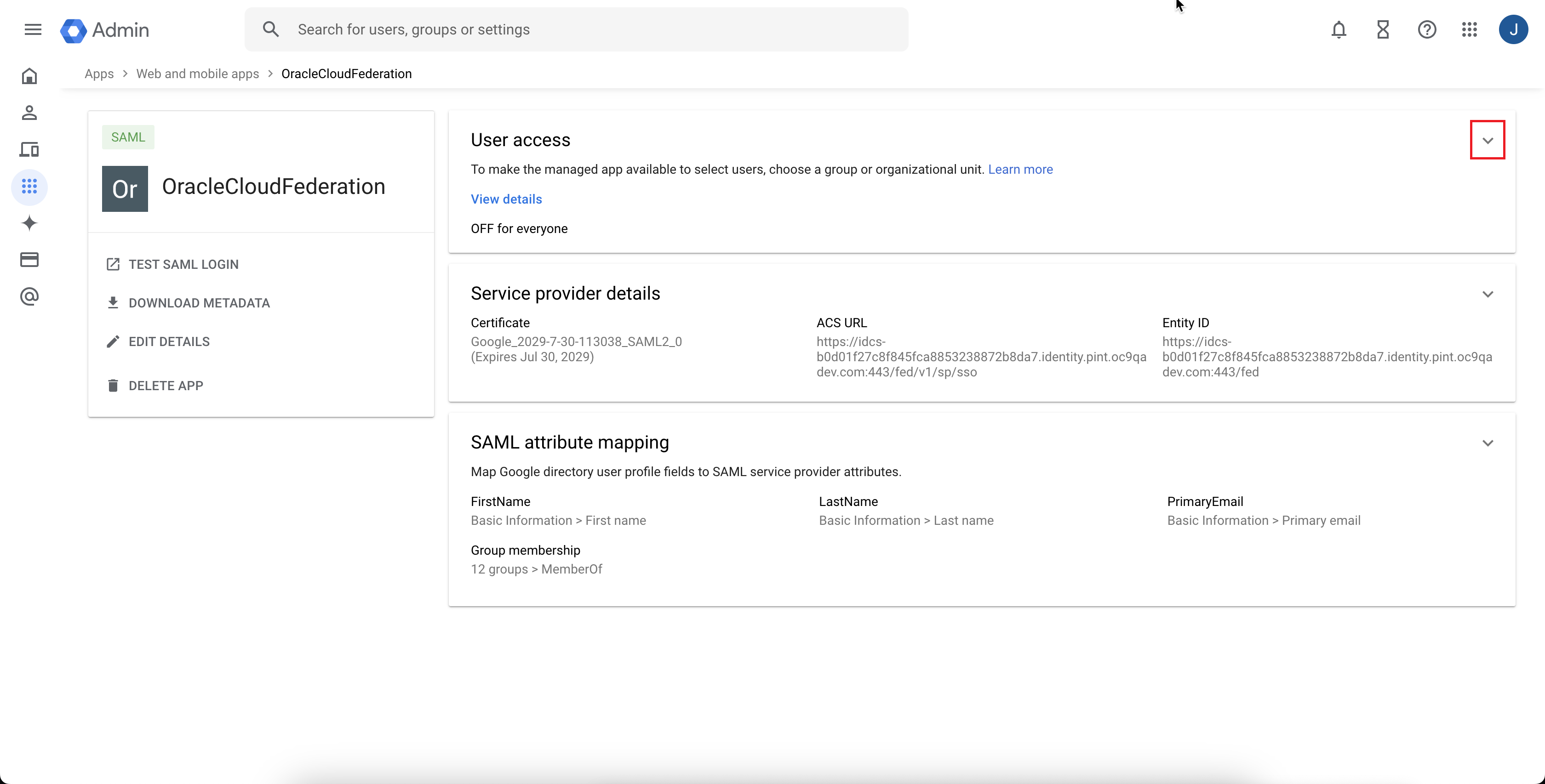
The Google Cloud admin console automatically redirects to the details page for the SAML application that you created.
-
Expand the User access section.
-
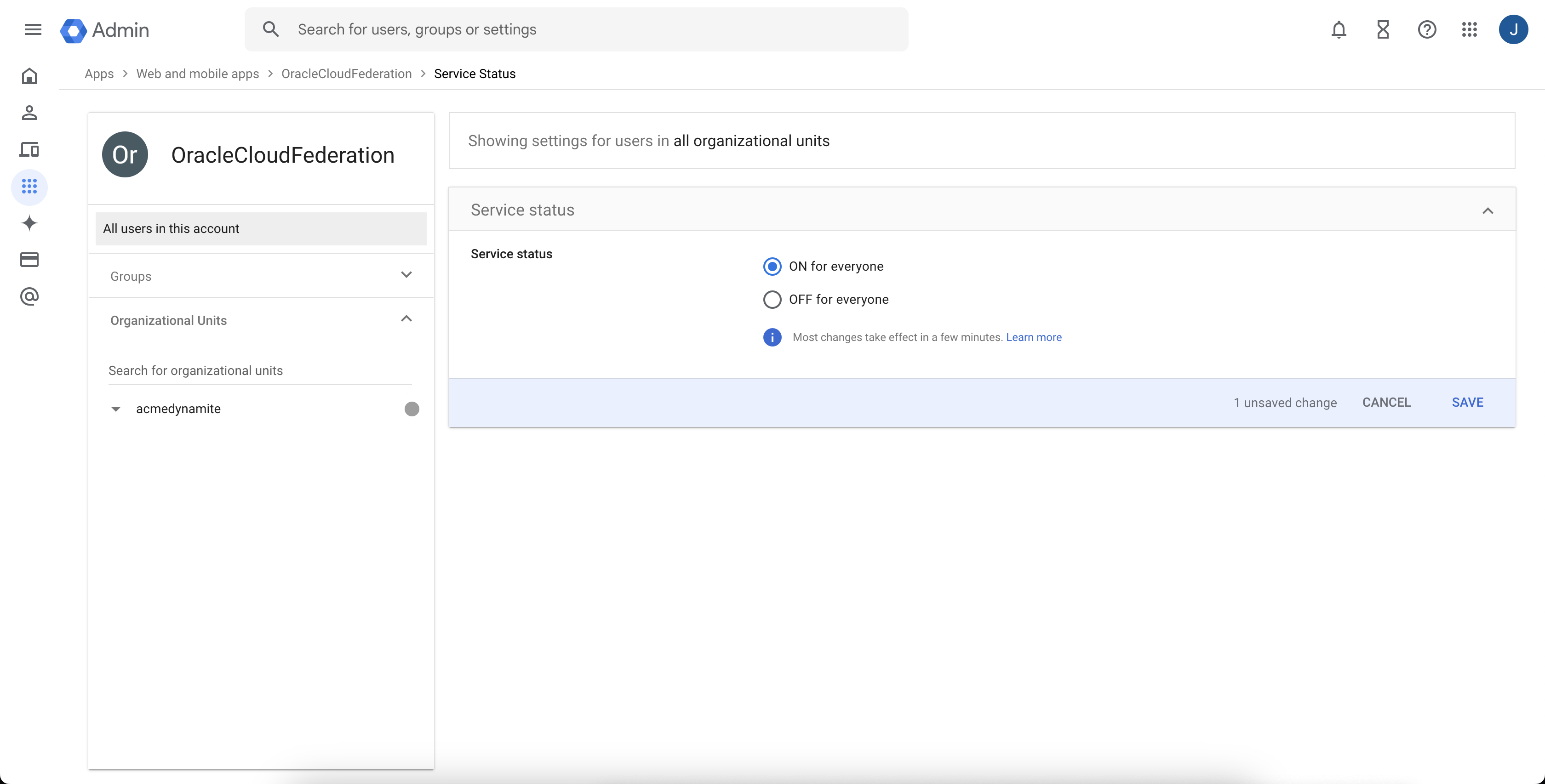
In the Service status section, select ON for everyone, then select SAVE.
-
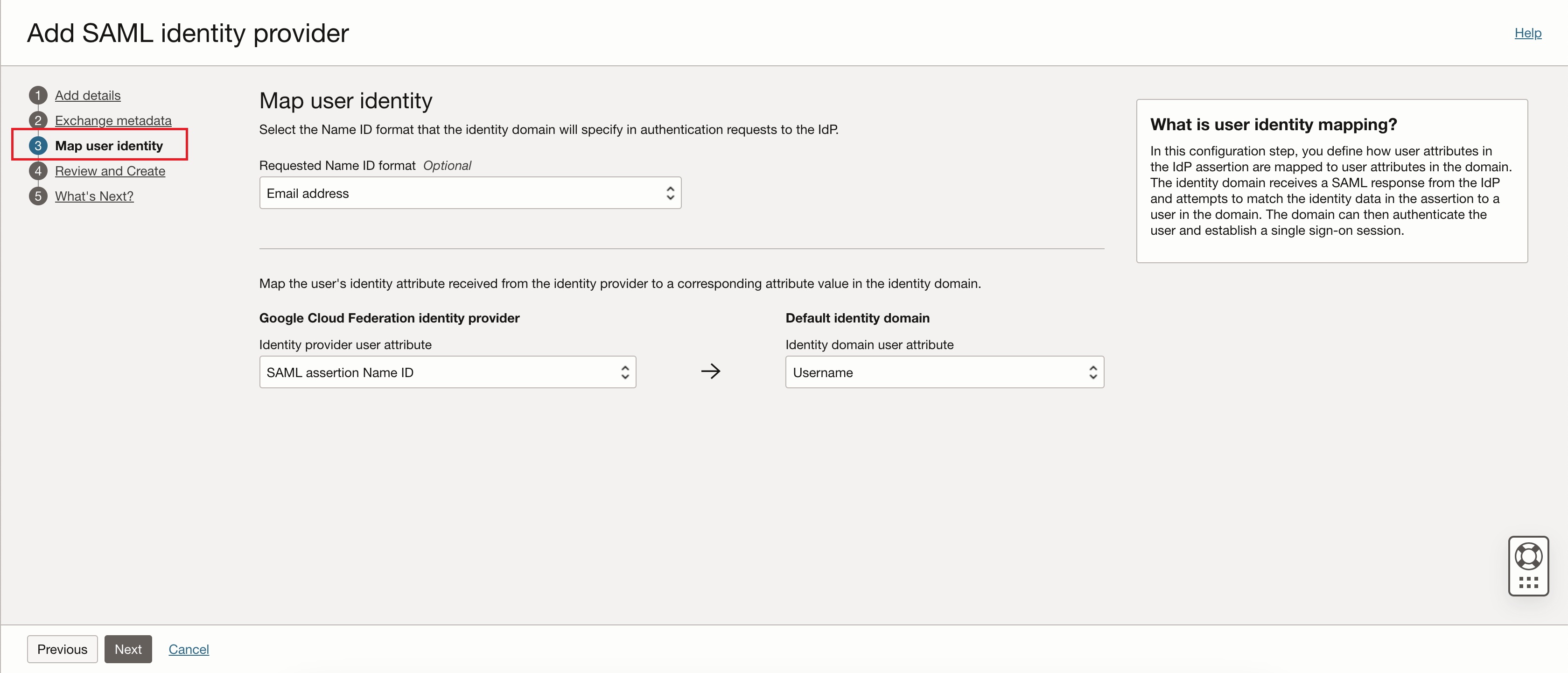
Return to the window or tab that displays the Oracle Cloud Console. On the Add SAML identity provider page, select Map user identity. Enter the following values:
- Requested Name ID format: Select "Email address".
- Identity provider user attribute: Select "SAML assertion Name ID".
- Identity domain user attribute: Select "Username".
-
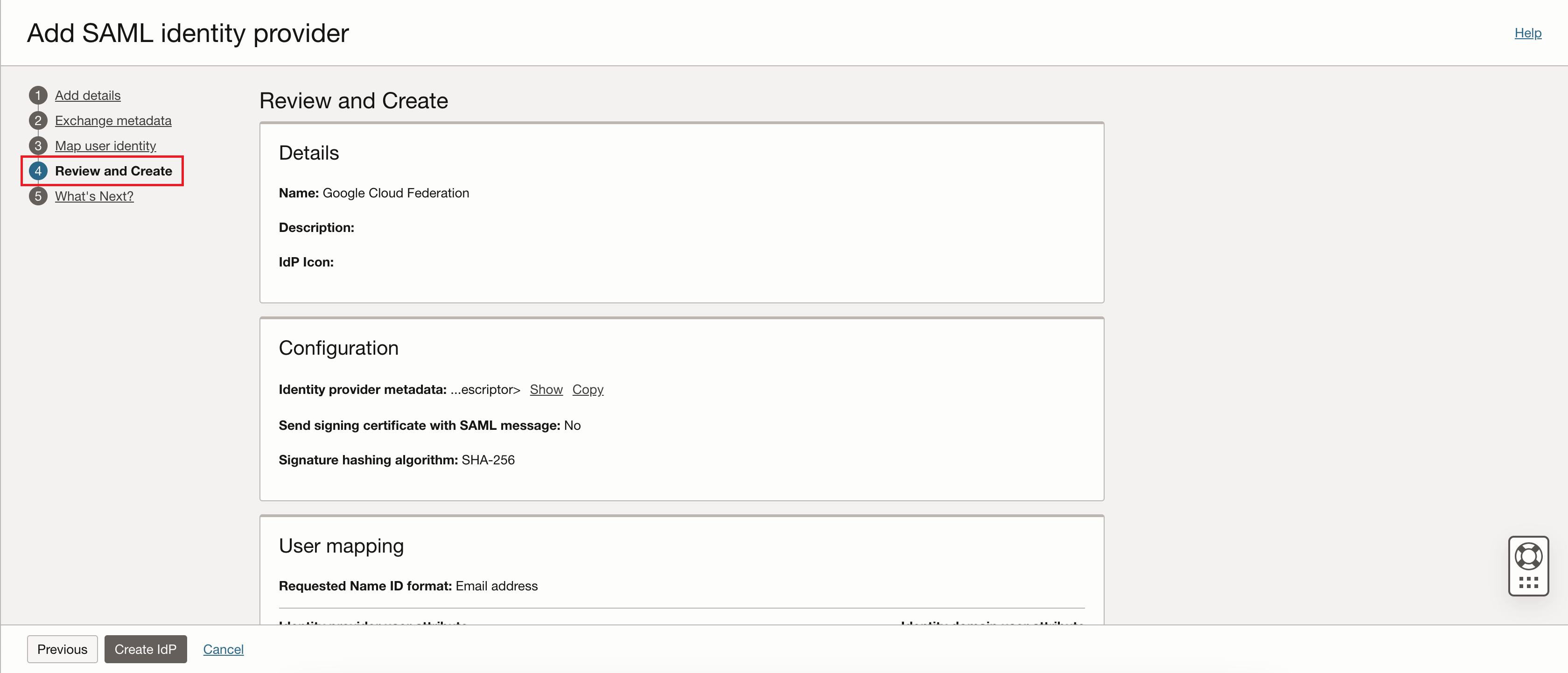
On the Add SAML identity provider page, select Review and Create.
Review the SAML identity provider details, then select Create IdP.
-
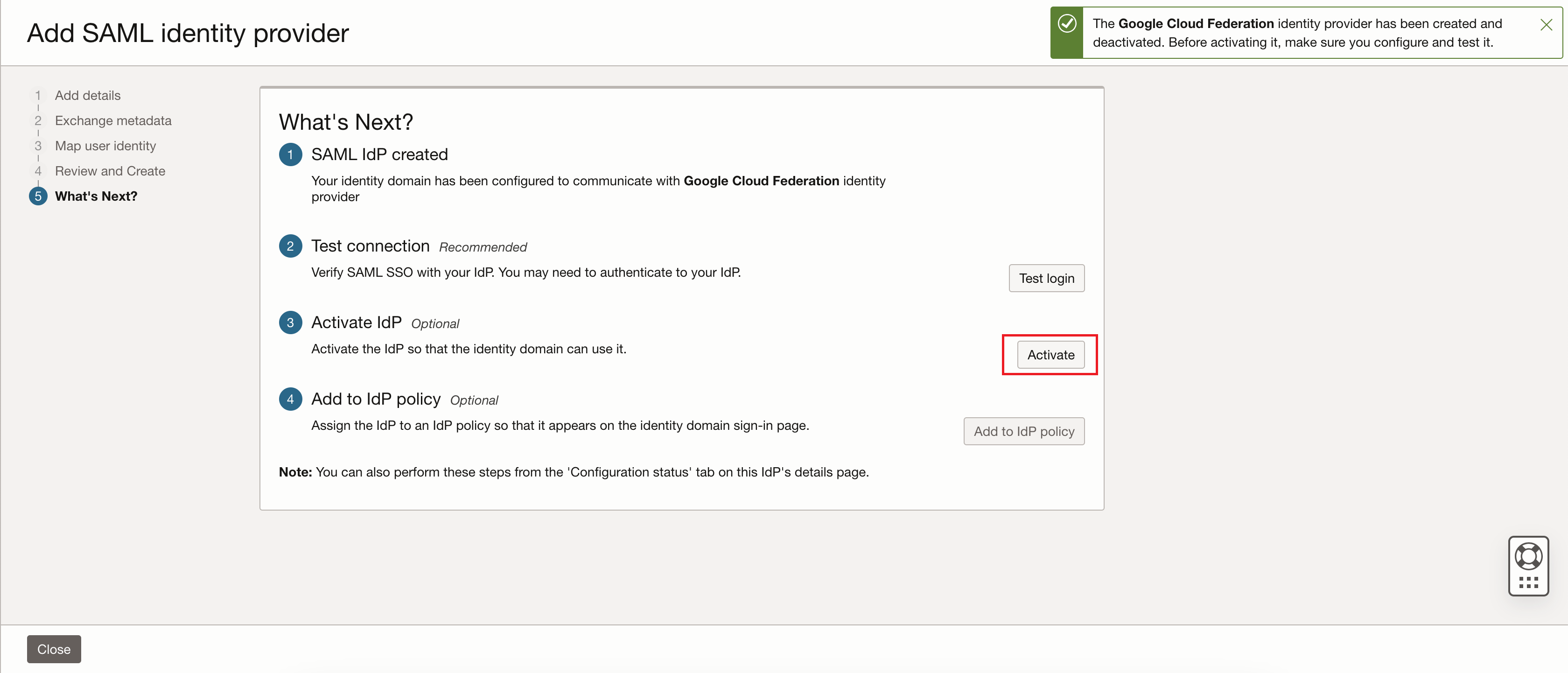
Select Activate to activate the identity provider (IdP).
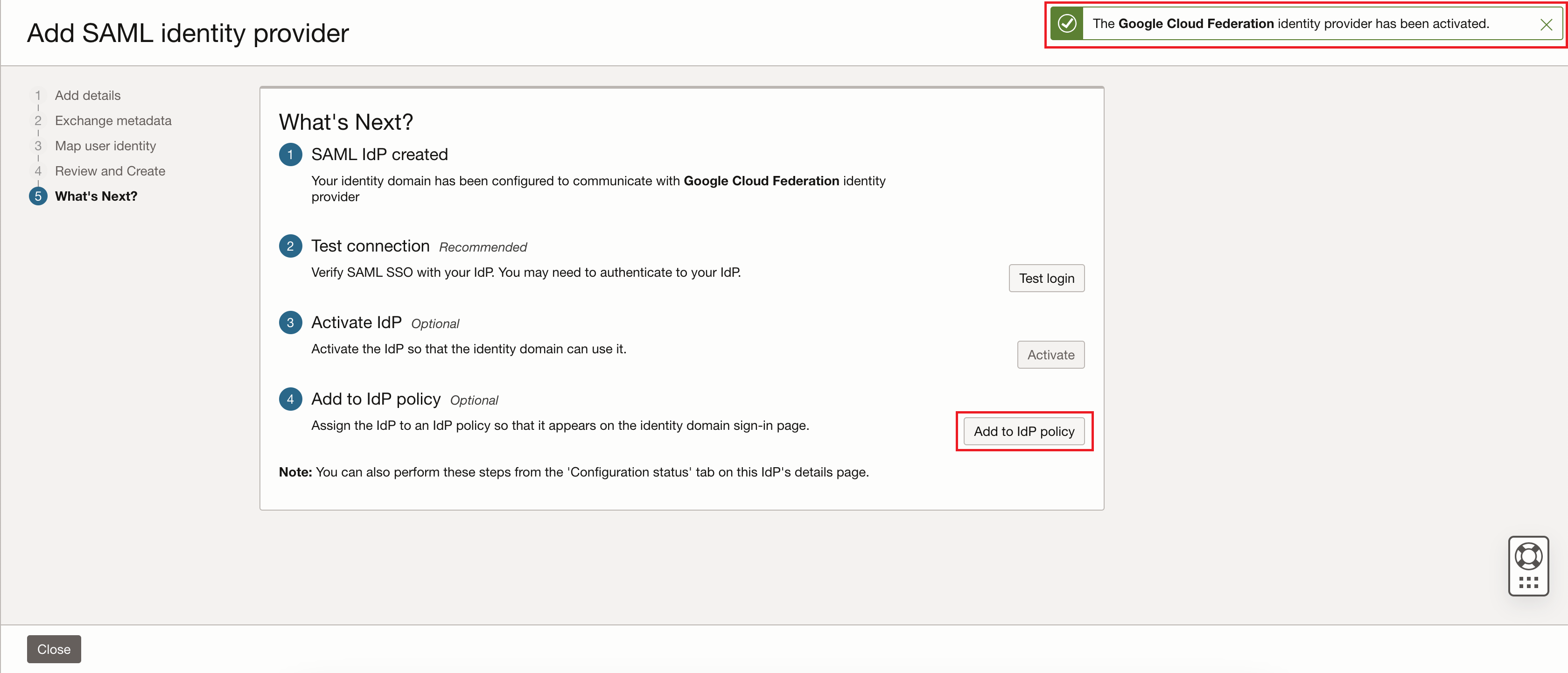
A confirmation message indicates that the identity provider is active.
-
Select Add to IdP policy.
-
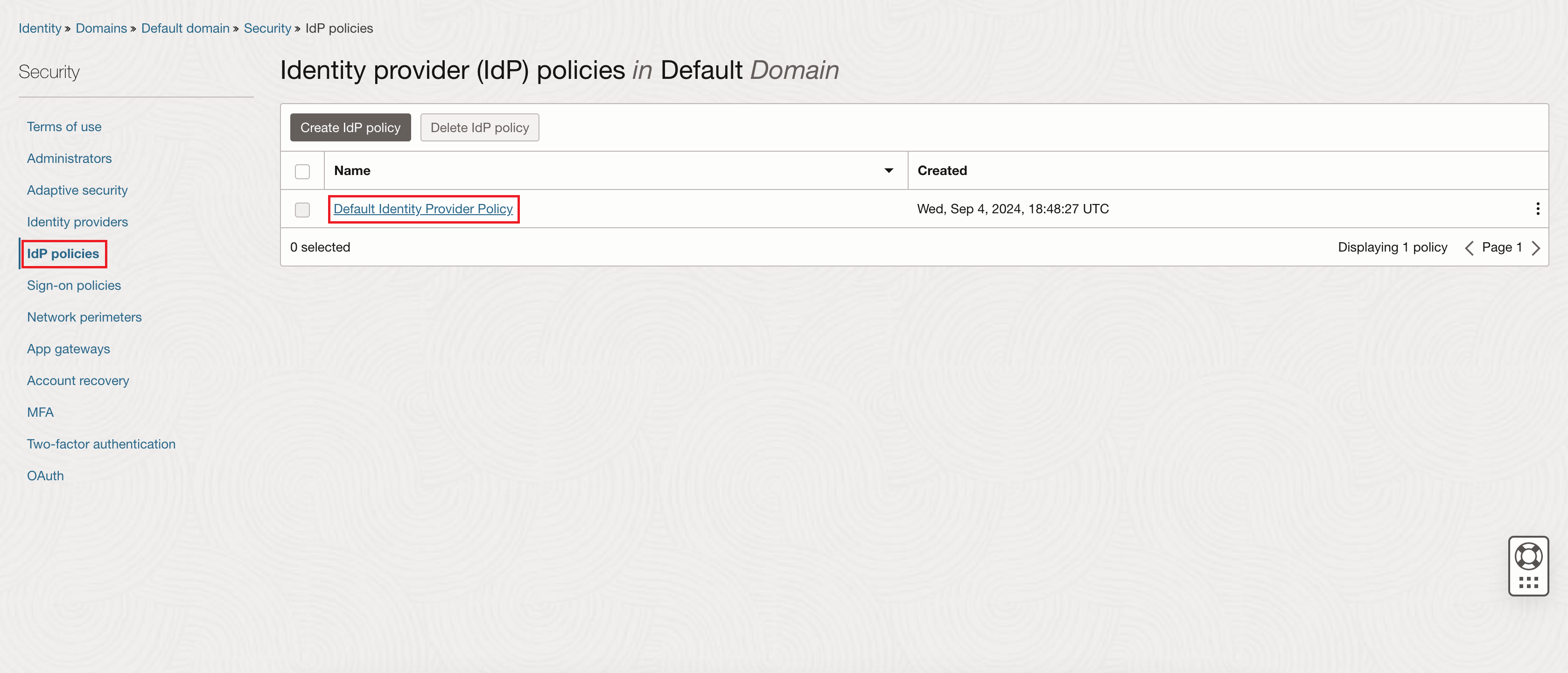
On the Identity provider (IdP) policies page, select Default Identity Provider Policy in the Name column of the list of policies.
-
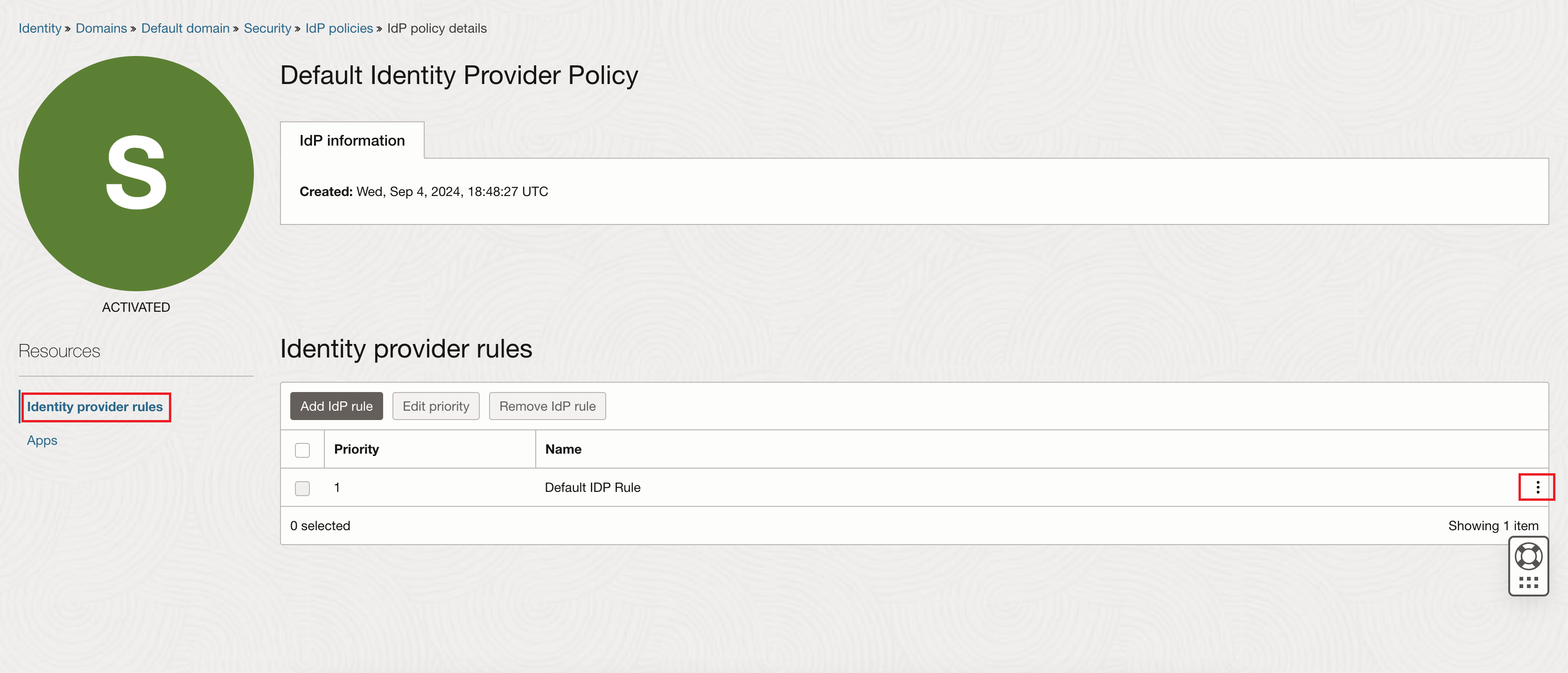
On the Default Identity Provider Policy policy details page, in the Identity provider rules section, select Edit IdP rule.
-
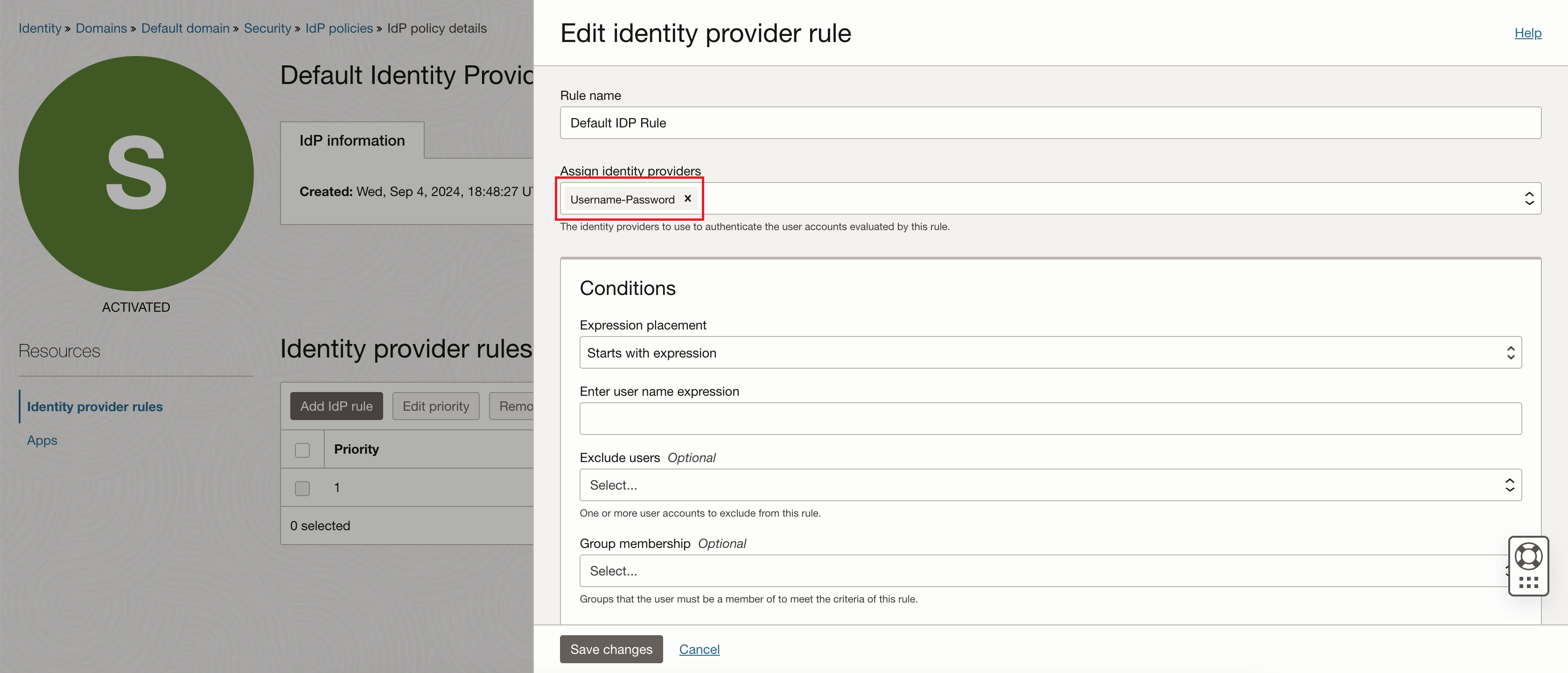
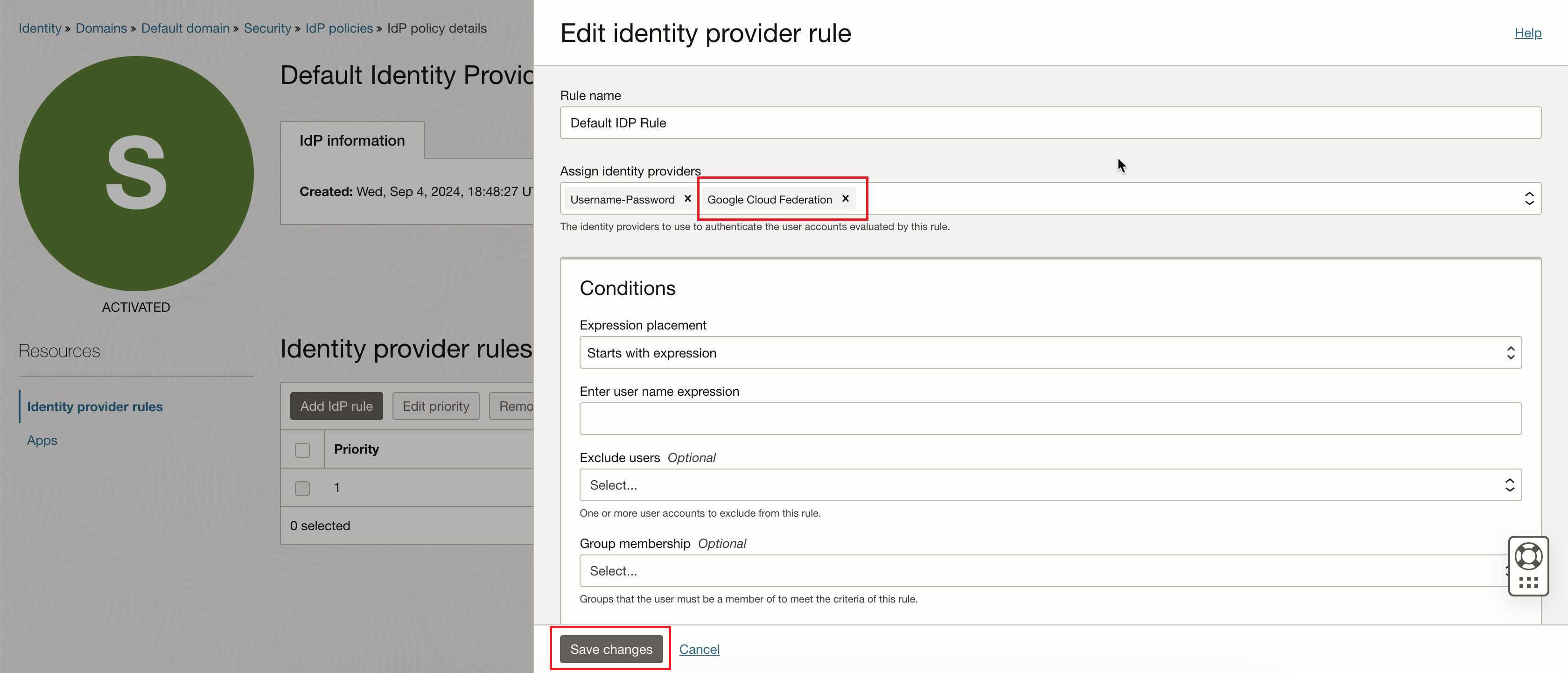
On the Edit Identity provider rule page, find the Assign identity providers field. The field displays "Username-Password". Add "Google Cloud Federation", then select Save changes.
After adding "Google Cloud Federation":
-
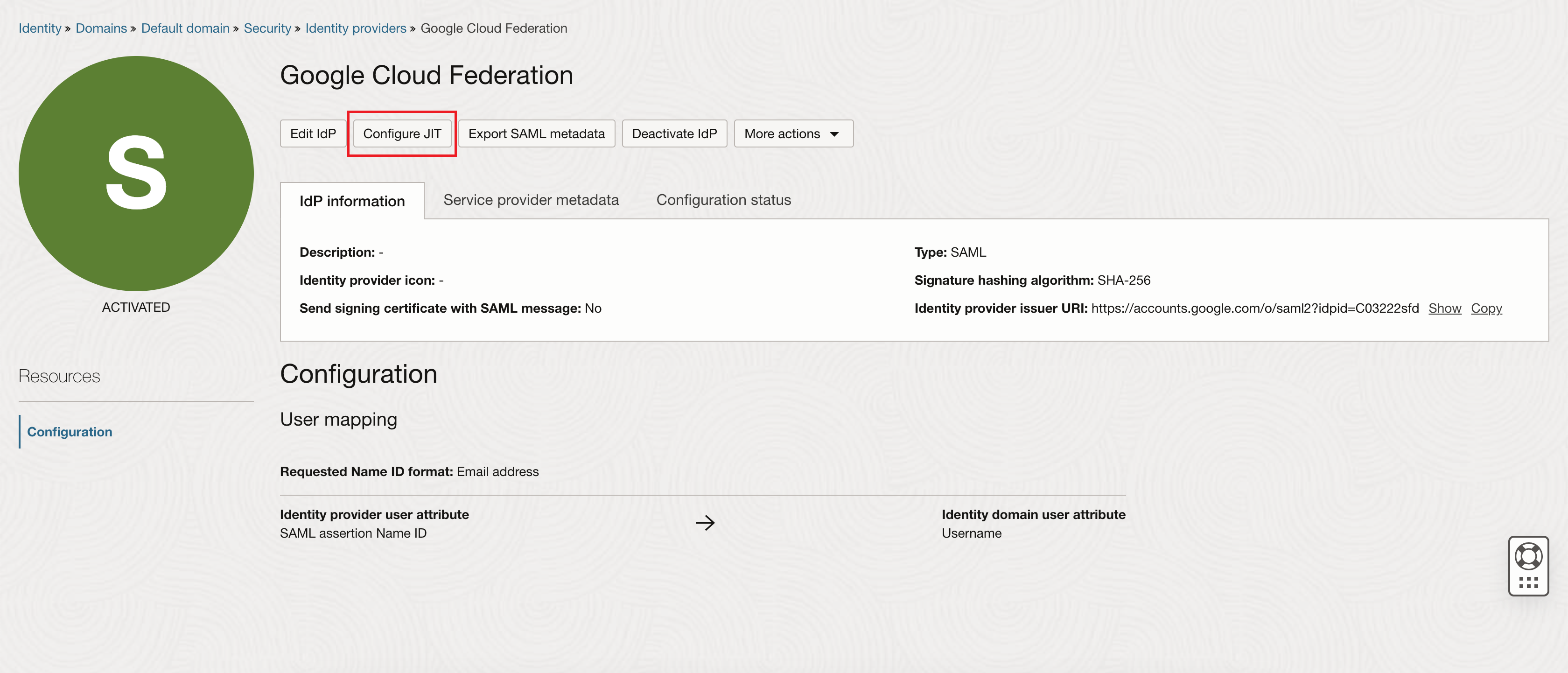
On the details page for the Google Cloud Federation identity provider, select Configure JIT.
-
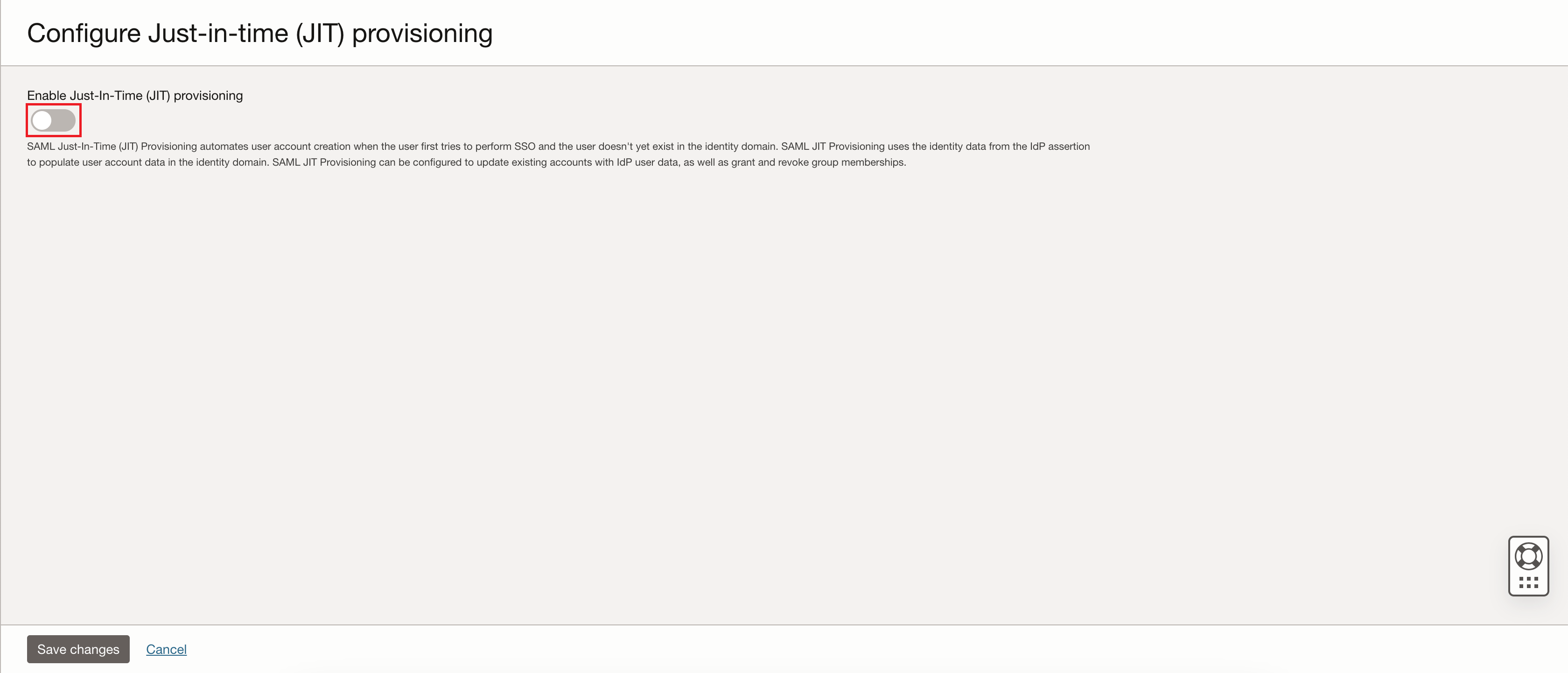
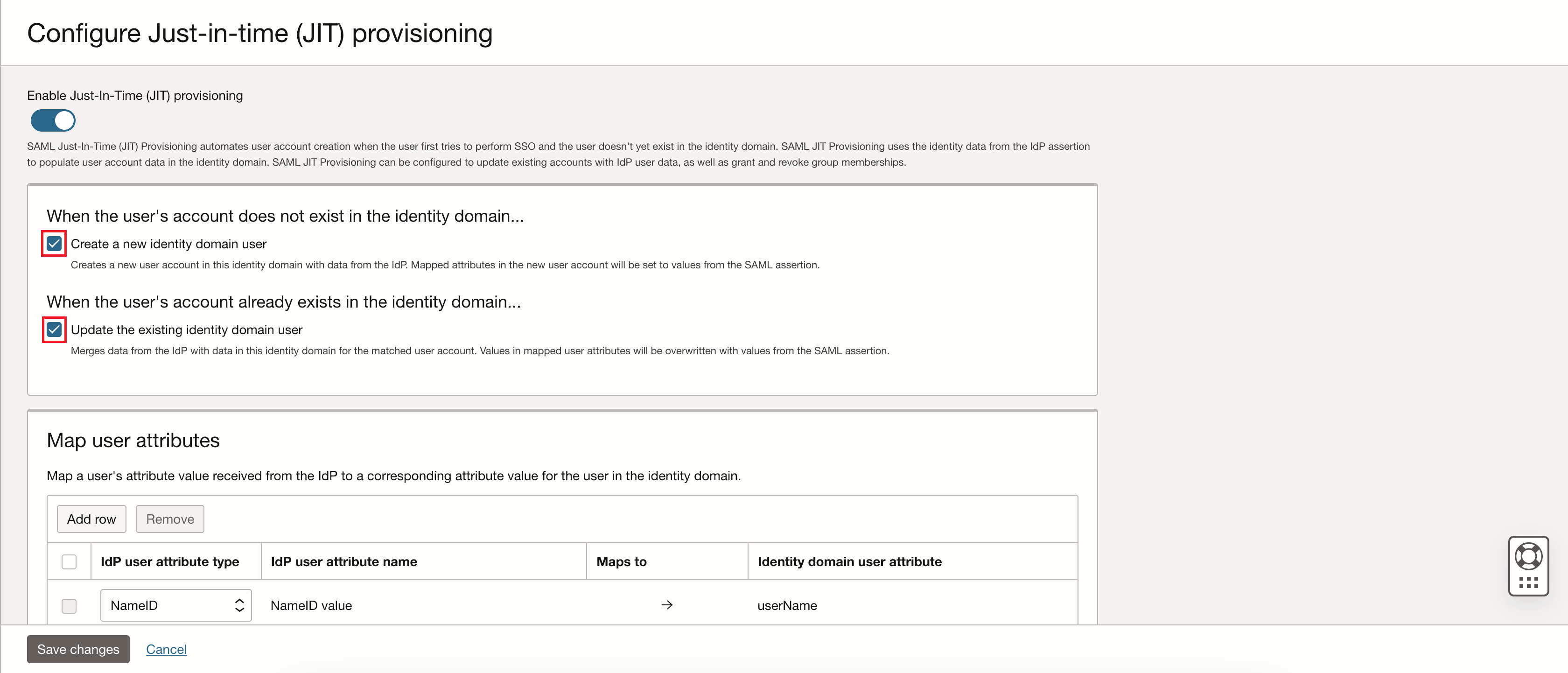
On the Configure Just-in-time (JIT) provisioning page, turn on the Enable Just-In-Time (JIT) provisioning switch. Remain on this page for the next few steps.
-
On the Configure Just-in-time (JIT) provisioning page, select Create a new identity domain user and Update the existing identity domain user.
-
On the Configure Just-in-time (JIT) provisioning page, map the user attributes as follows:
IdP User Attribute Type IdP User Attribute Name Maps To Identity Domain User Attributes NameID NameID value → userName Attribute LastName → familyName Attribute PrimaryEmail → primaryEmailAddress Attribute FirstName → firstName 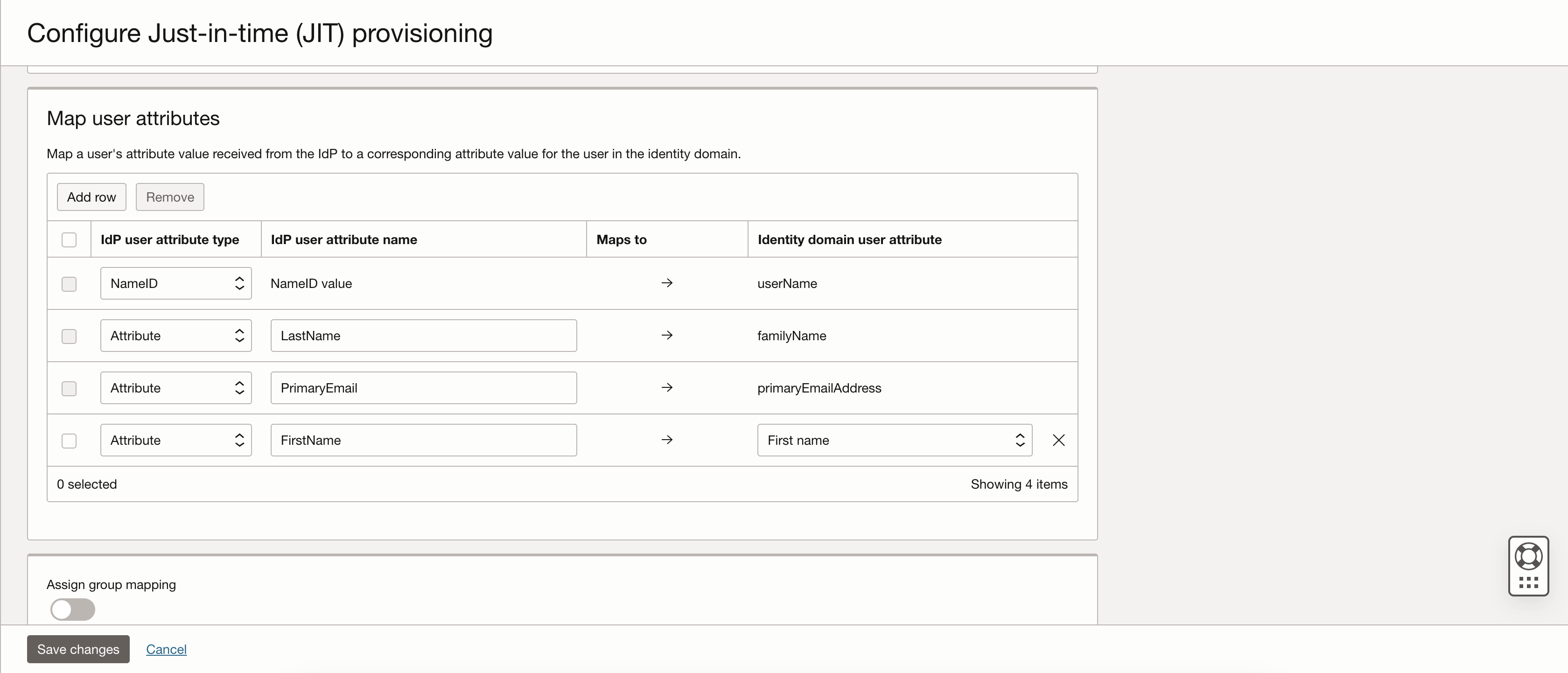
-
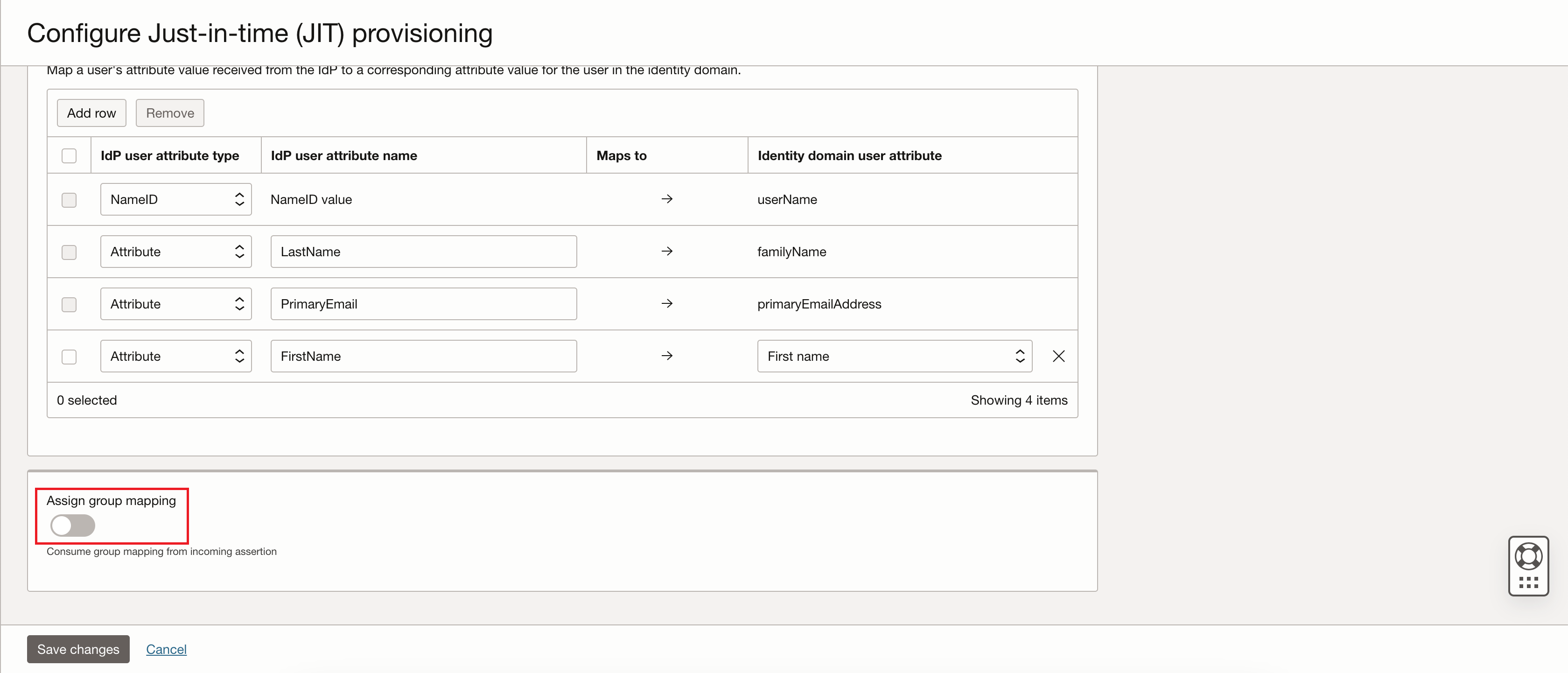
On the Configure Just-in-time (JIT) provisioning page, toggle the Assign group mapping switch to enable the group mapping you configured. The Assign group mapping section expands to display group mapping configuration options.
-
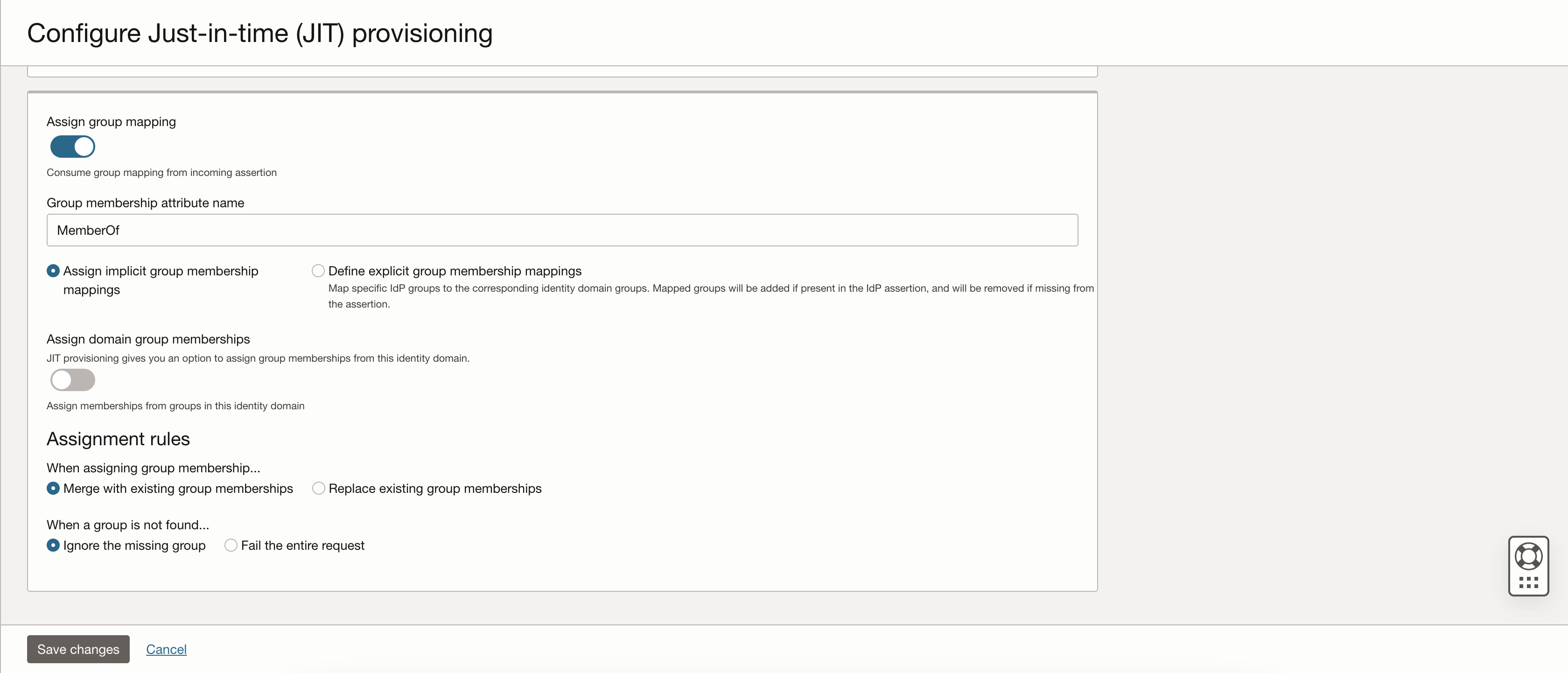
On the Configure Just-in-time (JIT) provisioning page, select or enter the following values:
- Group membership attribute name:
MemberOf - Assign implicit group membership: Select the radio button to enable this option
- When assigning group membership...: Merge with existing group memberships
- When a group is not found...: Ignore the missing group
Select Save changes after you select and enter the values.
You've configured identity federation between OCI and Google Cloud.
- Group membership attribute name:
-
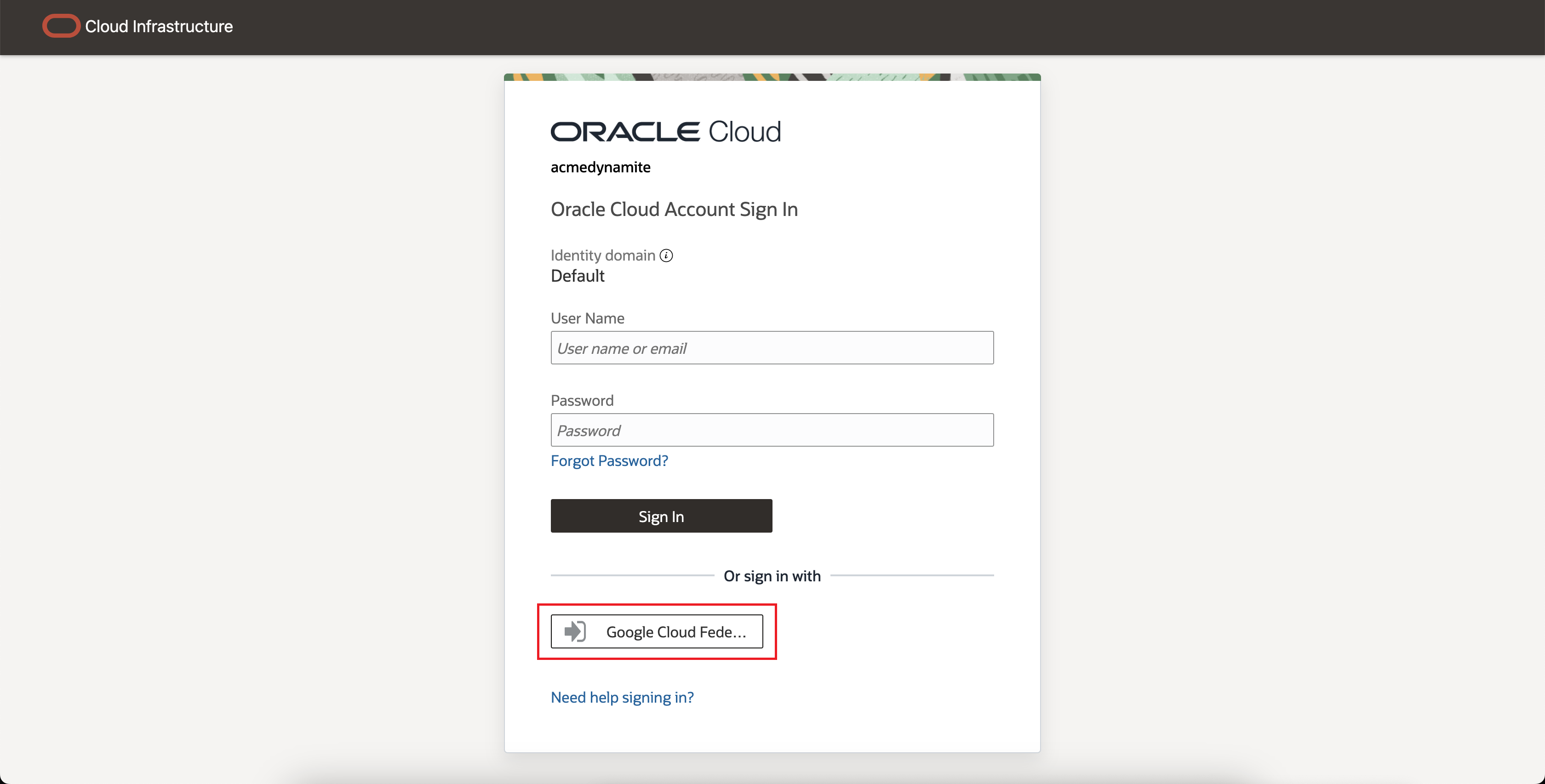
Test single sign-on:
- Sign out of the Oracle Cloud Console.
- In the Or sign in with section of the login screen, select Google Cloud Federation.
What's Next
If you want to allow additional users to open My Oracle Support (MOS) service requests, see the instructions in Support Registration. Federation doesn't automatically grant users access to My Oracle Support.